![Engagedly dark.png]](https://help.engagedly.com/hs-fs/hubfs/Engagedly%20dark.png?height=31&name=Engagedly%20dark.png)
Learners can start courses and learning paths assigned to them or that they are enrolled in.
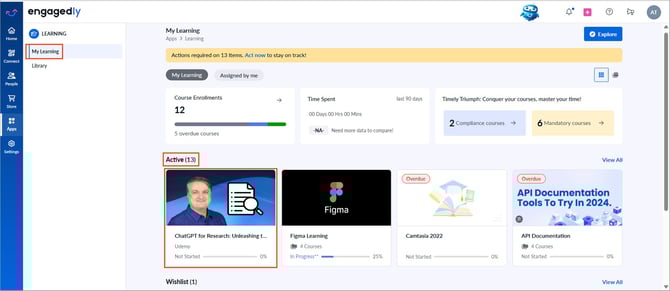
Navigate to Apps > Learning > My Learning.
The “My Learning” tab displays active learnings assigned to you or enrolled by you.
📒Note: If you have permission to manage learnings, the” Assigned by me” tab appears next to “My Learning”.
- In the “Active” section, open a learning and click Start.
View learning details
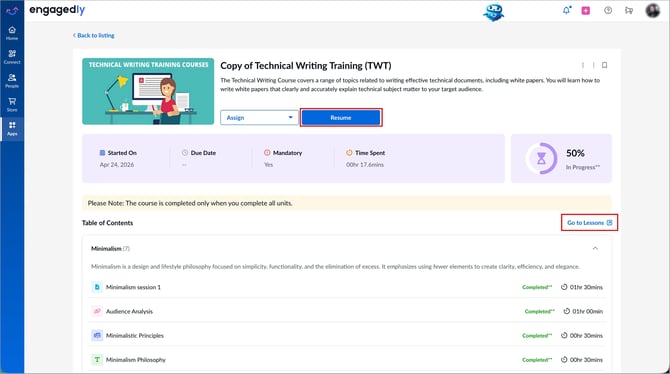
On the listing page, the learning information is displayed, including the name, description, contents, duration, author, and co-authors.
-
Scroll down to view the detailed information.
-
Take learning at intervals as required.
Go to lessons
To continue learning after an interval, do one of the following on the listing page:
- Click Resume to continue from where you left.
-
Click Go to Lessons on the right.
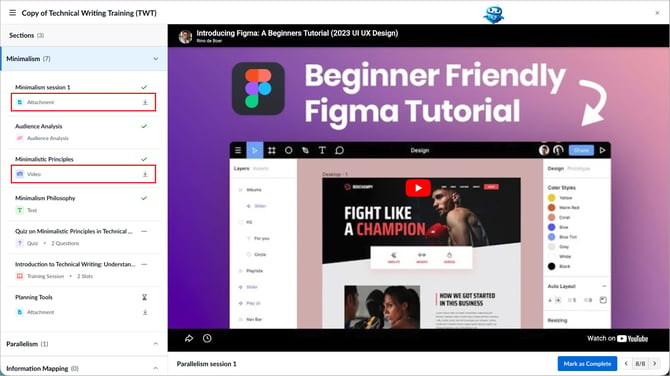
The course player opens with sections and units on the left and the learning content on the right.
Click the Download  icon next to video and attachment units to download them (if your admin enables downloads).
Quizzes and surveys
- If a course includes a quiz unit and the author allows quiz retakes, you can request a reset for a failed quiz.
Click Request Attempt at the top of the failed quiz.
- If a course includes both quiz and survey units, and the author links them to course completion, you must complete and submit your responses.
- If a course includes a quiz, you can return to previous questions during the attempt. You can edit your responses only when answer editing is enabled for the quiz.
- If marks are allotted to the quiz, the score is displayed after the quiz is submitted.
ℹ️Additional information:
- When authors assign marks to quiz questions, each question carries a defined weight. This helps identify critical questions and improves evaluation.
- If the author does not link the survey to course completion, you can skip it and mark the course as complete.
- You cannot edit survey responses after submission, but you can view them in the survey unit.
- If you skip a survey and mark it as complete, you cannot submit responses later.
Complete learning
- Mark each unit as complete after finishing it.
📒Note: In some units, the “Mark as Complete” option becomes available only after you meet certain conditions set by the author. These may include:
- Scrolling through the entire content
- Spending a minimum amount of time on the unit
You can mark the unit as complete only after you meet at least one of these conditions.
📒Note: You cannot mark units as complete if the author enables manual evaluation.
- If the author enables reviews, you can review the course after completing it.