![Engagedly dark.png]](https://help.engagedly.com/hs-fs/hubfs/Engagedly%20dark.png?height=31&name=Engagedly%20dark.png)
A 360 feedback review helps employees receive constructive feedback from multiple sources, providing a well-rounded view of their strengths and areas for improvement.
- Employees self-review and provide feedback for peers, managers, or others (if allowed) to help colleagues understand their strengths and areas for improvement. This supports a culture of learning and collaboration.
- Managers provide constructive feedback to direct reports and team members to guide performance, recognize achievements, and identify development plans.
- Admins oversee the 360 feedback cycle, ensure respondents are nominated, manage overall feedback, and monitor progress, while maintaining respondent anonymity (if required).
Access the review form
Once the 360 feedback cycle begins, you receive notifications on your dashboard, in-app, and by email.
Access the review form in any of the following ways:
- From the "Dashboard", click Start under pending actions.
- Click the Bell
 icon at the top right and select the performance review notification.
 - Open the review email notification and click Submit Feedback.
Navigate to Apps > 360 Feedback > My 360 Feedback, then click Start Review under “Ongoing Reviews”.
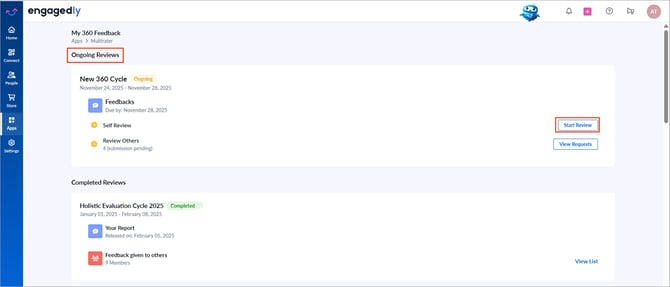
Refer to the My 360 feedback dashboard to understand additional actions you can perform for ongoing reviews.
For managers or admins
Under “Ongoing Reviews”, click “View Requests” to display the list of reviewees.
Click Start to begin or Decline to reject the request.
360 feedback form overview
The 360 feedback form displays:
- Cycle name, review period, and due date
- Reviewees and their manager details
- Feedback instructions (if enabled during cycle configuration)
The left pane lists the review form sections. Each section may include questions, sub-questions, rating scales, and comment fields (if enabled).
Submit your feedback
If you are a reviewer for multiple reviewees in the same cycle, click Show at the top right of the feedback form to view the list of reviewees.
Click a reviewee’s name to open their 360 feedback form.
If your relationship with the reviewee is self, manager, or peer, the system automatically adds it. If your relationship is other, open the drop-down and select the appropriate option.
After completing your responses:
- Click SAVE.
- Edit your responses until submission ends.
- When ready, click SUBMIT.
📒Note: After submitting your feedback, you can edit your ratings or comments before either the cycle end date is reached or your manager or admin locks your feedback, whichever happens first.
After all participants submit their feedback and the cycle reaches its end date, admins share the report. Based on the cycle configuration, you may also receive “How do I read this report” instructions.
Refer to the Export 360 feedback reports to learn how to download or share the report.