![Engagedly dark.png]](https://help.engagedly.com/hs-fs/hubfs/Engagedly%20dark.png?height=31&name=Engagedly%20dark.png)
Submit your 360 feedback to help colleagues understand their strengths and areas for improvement. Depending on the review cycle configuration, you can complete a self-review and provide feedback for peers, managers, direct reports, or other respondents assigned to you.
Who participates in a 360 feedback review
- Employees: Complete a self-review and provide feedback for assigned respondents.
- Managers: Provide feedback for direct reports and team members.
- Admins: Manage review cycles, respondents, and progress.
- External respondents: Provide feedback when enabled in the review cycle.
Access the review form
Once the 360 feedback cycle begins, you receive notifications on your dashboard, in-app, and by email.
Access the review form in any of the following ways:
- From the "Dashboard", click Start under pending actions.
- Click the Bell
 icon at the top right and select the 360 feedback notification.
 - Open the 360 feedback email notification and click Submit Feedback.
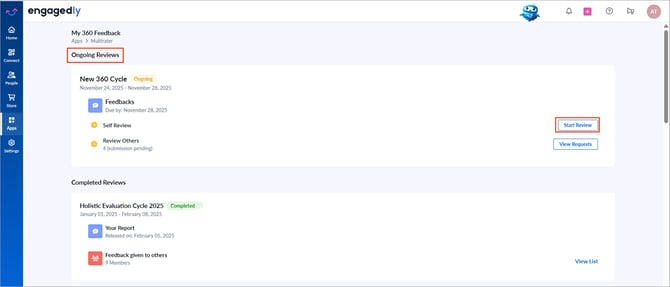
- Navigate to Apps > 360 Feedback > My 360 Feedback, then click Start Review under “Ongoing Reviews”.
360 feedback form overview
The 360 feedback form displays:
- Cycle name, review period, and due date
- Reviewees and their manager details
- Feedback instructions (if enabled during cycle configuration)
The left pane lists the review form sections. Each section may include questions, sub-questions, rating scales, and comment fields (if enabled).
Submit your feedback
Navigate to Apps > 360 Feedback > My 360 Feedback.
- Under “Ongoing Reviews”, click Start Review.
- Enter your responses.
- At the top right, do one of the following:
-
- Click SAVE to save your responses and continue later.
- Click SUBMIT to submit your feedback.
4. If you click SUBMIT, click YES to confirm.
📒Note: You can submit your feedback only after the progress bar reaches 100%, which indicates that you have completed all required responses.
Edit your responses
After submitting your feedback, you can edit your responses until the submission period ends or your feedback is locked, whichever comes first.
Navigate to Apps > 360 Feedback > My 360 Feedback.
- Under “Ongoing Reviews”, locate the cycle.
- Click View to open the review form.
If you have multiple submissions, click View Requests, hover over the participant and click View to open the review form. - Click EDIT at the top right.
- Click CONTINUE to confirm.
- Modify your ratings and comments.
- At the top right, do one of the following:
-
- Click SAVE to save your responses and continue later.
- Click SUBMIT to submit your feedback.
7. If you click SUBMIT, click YES to confirm.
📒Note: You cannot edit the review if your feedback is locked or if the submission due date has passed.
After all participants submit their feedback and the cycle reaches its end date, admins share the report.
To learn how to download your report, refer to Export your 360 feedback reports.
If you are nominated as respondents, you can provide feedback for their colleagues. For more information, refer to Submit 360 feedback for others.