![Engagedly dark.png]](https://help.engagedly.com/hs-fs/hubfs/Engagedly%20dark.png?height=31&name=Engagedly%20dark.png)
Admins can view reports for the entire organization, while managers can view reports only for their teams.
Export weekly reports in bulk
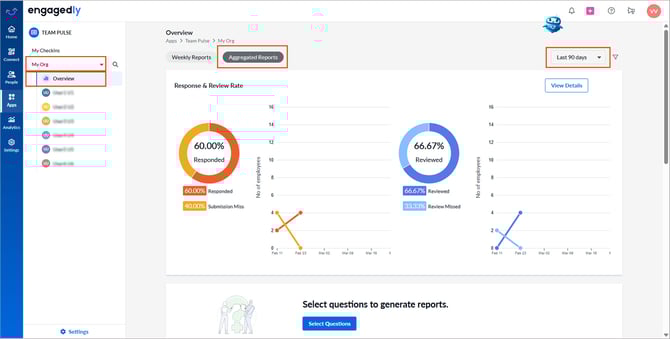
Navigate to Apps > Team Pulse.
Admins: Select My Org from the drop-down.
Managers: Select a team from the drop-down.
- Click Overview > Aggregated Reports.
- Select the required duration from the “Period” drop-down.
- Review overall response and review rates.
- Click the graph to open the detailed view.
- Click View Details to analyze further insights. For more details, refer to Nudge employees and managers in team pulse.
Generate question reports
- Select the required duration from the “Period” drop-down.
- Click Select Questions.
- Select the questions to include in the report.
- Click Select Questions to confirm.
Export or remove question reports
After generating the report, you can export or remove it for a specific question.
- Click Overview > Aggregated Reports.
- Select the required duration from the “Period” drop-down.
- Scroll down to the required question.
- Click the Ellipsis
 icon on the right side of a question.
 - Do one of the following:
- Select Export Report to download the question-wise report for the selected period.
- Select Remove Report to delete the report.
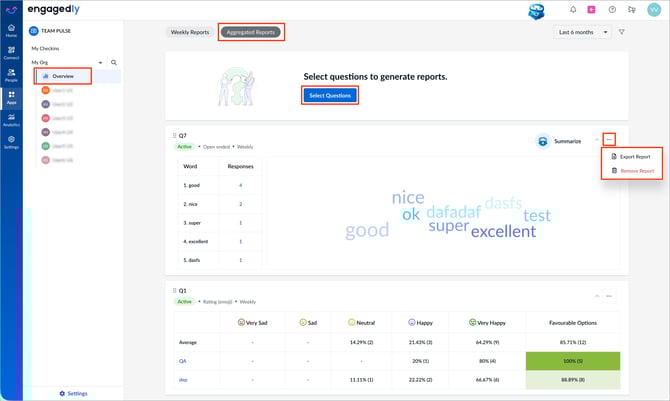
Select Remove Report to delete the report.
Generate summary
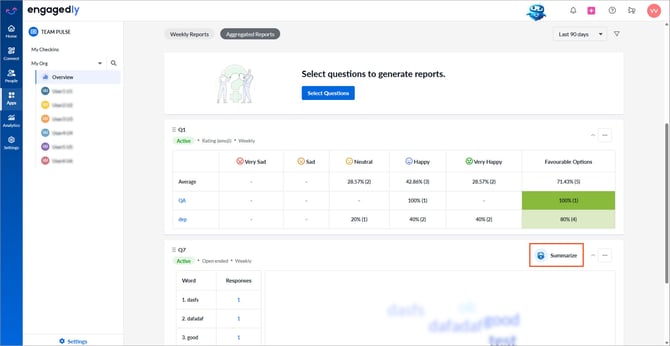
After generating the report, you can use Marissa AI to generate a summary.
- For open-ended questions, click the Marissa
-4.png?width=18&height=20&name=Marissa%205@2x%20(2)-4.png) icon to generate a summary.
icon to generate a summary.
📒Notes:
- Ensure the correct team and period are selected before downloading, as the exported report reflects the currently applied filters.
- Marissa generates summaries only for open-ended questions.