![Engagedly dark.png]](https://help.engagedly.com/hs-fs/hubfs/Engagedly%20dark.png?height=31&name=Engagedly%20dark.png)
Table of contents
- Introduction
- Access engagement survey analytics
- Favorability distribution
- Heat map
- Engagement index
- Take action from analytics
- Customize analytics tiles
- Filter analytics data
- Export analytics
- Analytics dashboard
1. Introduction
Admins can view analytics for each engagement survey assignment to understand employee engagement trends and response patterns. The system automatically generates analytics after respondents submit their responses.
Admins. and CxOs can also view engagement survey responses from the analytics dashboard.
📒Note: A minimum of four responses is required to generate analytics. Admins can increase the anonymity threshold above four, but cannot set it below four.
2. Access engagement survey analytics
Navigate to Apps > Surveys.
- Scroll down to All Surveys.
- Open the engagement survey where you want to view analytics.
- Go to the Assignments tab.
- Click Analytics on an assignment.
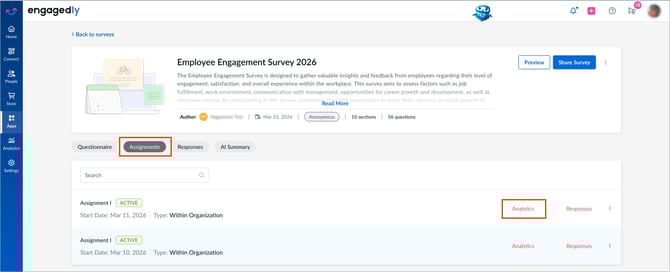
The “SURVEY ANALYTICS” page displays the favorability distribution, heat map, and engagement index based on the survey responses.
3. Favorability distribution (FD)
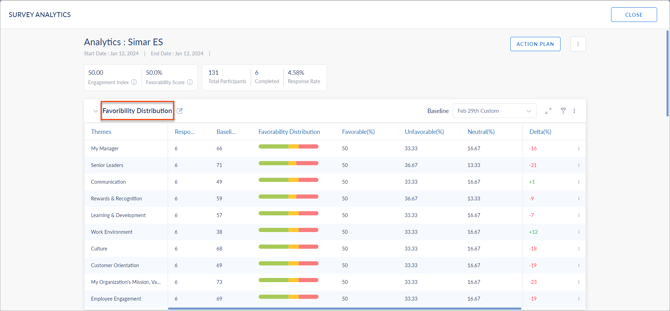
The favorability distribution shows how responses are distributed for agreement choice questions. It helps admins understand the level of engagement across sections and questions.
Favorability distribution is calculated using the following formula:
Favorability Distribution (FD) = Total favorable responses of active agreement choice questions / Total number of responses
📒Note: Active questions are questions that are not hidden. If a question is hidden, respondents and admins can still view the responses, but those responses are not included in the favorability distribution score.
Favorability distribution considers only “Strongly Agree” and “Agree” responses as favorable.
Responses are categorized as follows:
- Strongly Agree or Agree → Favorable
- Neither Agree nor Disagree → Neutral
-
Strongly Disagree or Disagree → Unfavorable
The system automatically calculates these ratios based on survey responses.
The following colors indicate the favorability distribution:
- Green: Favorable
- Yellow: Neutral
- Red: Unfavorable
4. Heat map
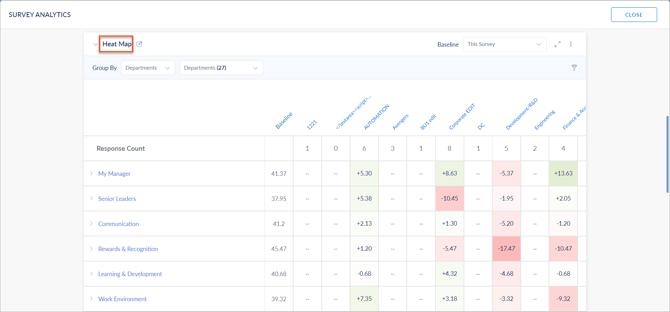
The heat map provides insights into engagement levels across survey sections and questions. It represents data using color variations and compares responses across functional groups against a selected baseline.
The system uses the baseline as the reference score when generating the heat map.
- If the response score is higher than the baseline, the value appears with a plus (+) sign.
- If the response score is lower than the baseline, the value appears with a minus (-) sign.
- Smaller differences appear in lighter colors, while larger differences appear in darker colors.
5. Engagement index (EI)
The engagement index measures employee engagement based on responses to driver questions.
If admins mark certain agreement choice questions as driver questions, only those questions are considered when calculating the engagement index.
To count toward the engagement index, respondents must answer all driver questions with favorable responses (Strongly Agree or Agree).
The engagement index is calculated using the following formula:
Engagement Index (EI) = Total favorable responses of active driver questions / Total number of responses to the driver questions
📒Note: Active questions are not hidden.
6. Take action from analytics
Admins can create action plans directly from the “SURVEY ANALYTICS” page.
To add a goal or note, do one of the following:
-
Click the Overflow
 Menu for a section in the favorability distribution.
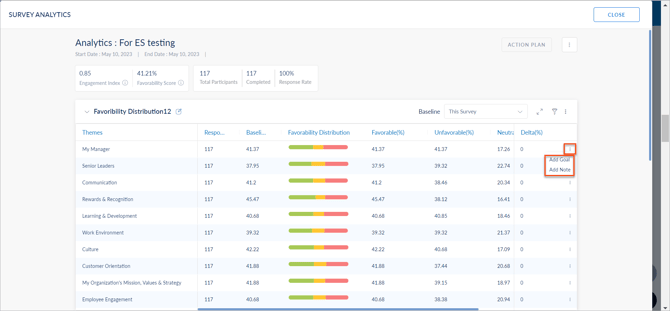
- Select a cell that contains a value in the heat map.
- Select one of the following options:
- Add Goal: Create and assign goals to employees to improve engagement levels.
- Add Note: Add notes for reference.
📒Note: These options appear only when the Goals and Notes apps are enabled.
7. Customize analytics tiles
Click the Overflow Menu at the top right of the “SURVEY ANALYTICS” page to customize analytics tiles.
Available options include:
- Add to Team Pulse: Add selected survey questions to Team Pulse.
- Add Distribution Tile: Add additional favorability distribution tiles.
- Add Heatmap Tile: Add additional heat maps.
- Reorder Tiles: Change the order of analytics tiles.
- Distribution Score: View section-wise distribution scores.
Adding multiple distribution tiles and heat maps allows you to view and compare the data between different filters.
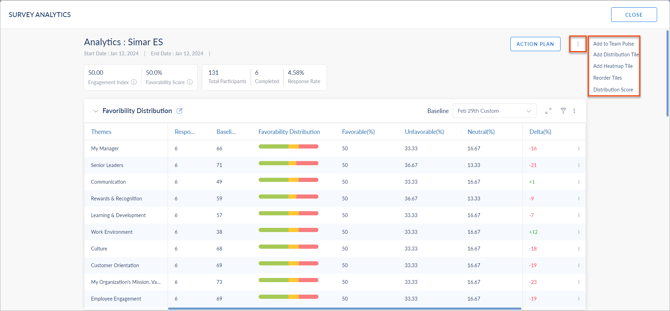
Adding multiple tiles allows you to compare analytics data across different filters.
You can also rename tiles.
-
Click the Edit
 icon next to the tile name.
 -
Enter the name.
-
Click outside the text box to save changes.
8. Filter analytics data
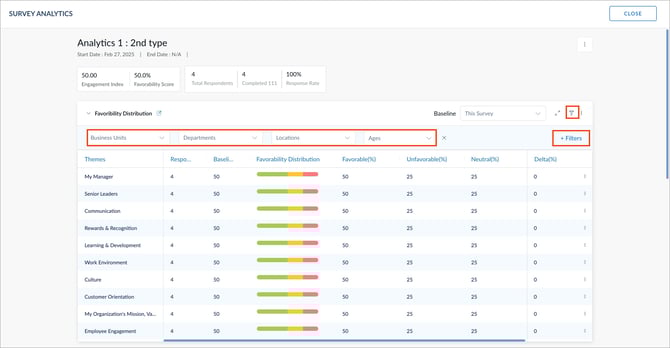
Filter the favorability distribution and heat map to compare engagement levels across different groups.
- At the top right, click the Filter
 icon and then click + Filters.
 - Select filters you want to include in the favorability distribution and heat map.
- Open the drop-down of the filters and select the specific attributes.
9. Export analytics
Export analytics data for further analysis.
- Click the Overflow
 Menu at the top right of the required tile.
 - Select Export.
The system exports:
- Favorability distribution in Excel format
- Heat map in PNG format
📒Note: Expand the sections and questions before exporting the report.
10. Analytics dashboard
Admins and CxOs can view engagement survey analytics from the dashboard.
Navigate to the Analytics > Engagement & Satisfaction.
- View the engagement survey analytics.
For more information, refer to Engagement and satisfaction analytics.