![Engagedly dark.png]](https://help.engagedly.com/hs-fs/hubfs/Engagedly%20dark.png?height=31&name=Engagedly%20dark.png)
Authors can view learners’ quiz responses and reset quizzes if required.
View quiz responses
Navigate to Apps > Learning > Author.
- Go to the Authored by you tab.
- Open an assigned course that contains a quiz unit.
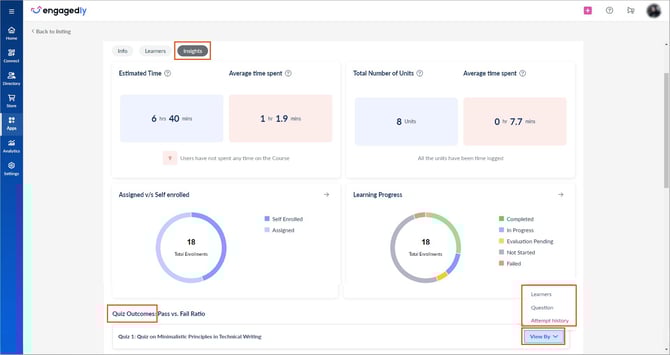
- Go to the Insights tab and scroll down to the “Quiz Outcomes” section.
- Hover over a quiz unit and open the View By drop-down.
- Select one of the following options:
- Learners: View responses by learners.
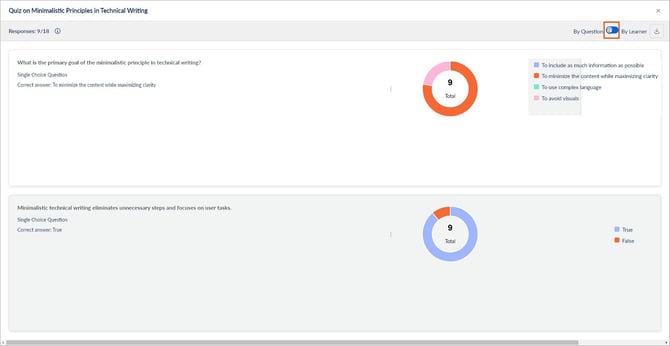
- Question: View responses by questions.
- Attempt history: View and export quiz attempt history.
📒Note: You can also view attempt history at the course level. Learn more in Export learners’ reports.
- When you view by questions, responses appear question-wise.
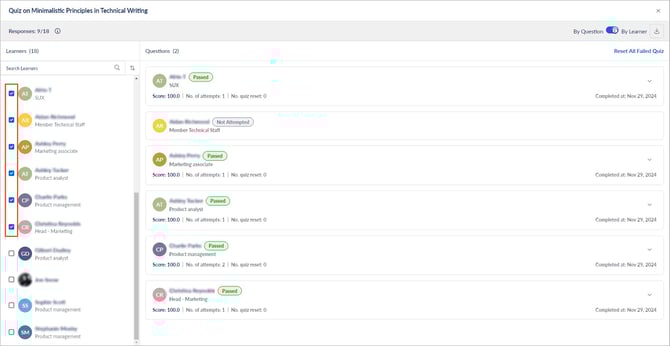
- When you view by learners, select a learner from the left panel to view:
- Score
- Number of attempts
- Number of quiz resets
Reset quiz
You can reset a failed quiz for learners if required.
- Open the View By drop-down and select Learners.
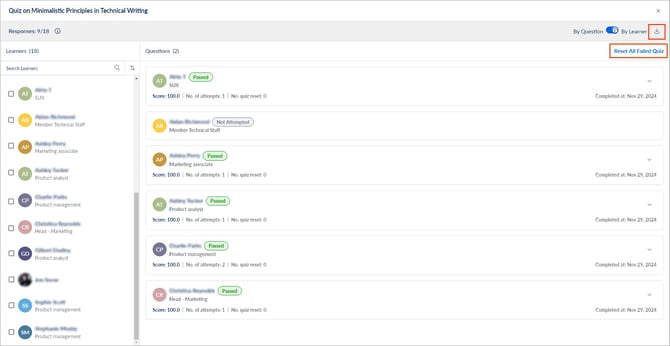
- Click Reset All Failed Quiz and then click Yes to confirm.
📒Note: Resetting the quiz deletes all failed attempts for all learners.
Export responses
You can export quiz results in Excel format.
- On the responses page, click the Download
 icon at the top right.
ℹ️Additional information:
- If “Link Quiz result with Course completion” is enabled and a learner fails the quiz after all retakes, the overall course score is “Fail”.
- If a learner passes the quiz, the overall score is “Pass”, and the course is marked as “Completed”.
- If a learner fails the quiz, they can retake it only if “Allow users to retake a failed quiz” is enabled.
- If the learner fails after all retakes:
- The overall score is “Fail”.
- The course is marked as “Completed”.
- If “This quiz requires a passing score” is enabled, the learner must score higher than the set passing score to pass the quiz.