![Engagedly dark.png]](https://help.engagedly.com/hs-fs/hubfs/Engagedly%20dark.png?height=31&name=Engagedly%20dark.png)
The workflow overview page brings key workflow actions together in one place. From here, you quickly create a workflow, browse templates, and view executed workflows, so you can act on workforce decisions without navigating away.
To learn what each section displays and how the page is organized, refer to Key sections of the overview page.
Access the overview page
Once you enable the workflow, you can access the “Overview” page to begin managing workflow activities.
Navigate to Apps > Workflow.
The “Overview” page opens as the default page.
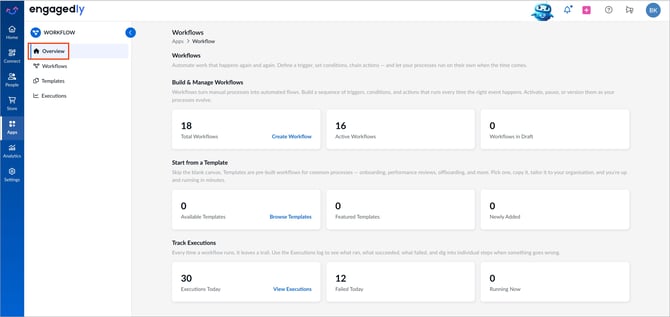
Actions you can take
Create a workflow
- Go to the Build & Manage Workflows section.
- Click Create Workflow to open the workflow builder and create a new workflow.
You are redirected to the workflow builder page. You can also create a workflow using AI. For more information, refer to Create a workflow.
Track executions
Execution generates the data automatically when a workflow is triggered.
You are redirected to the “Executions” page, where all executed and failed workflows appear. Filter them by name, details, trigger, action, or status.
📒Note: The “Templates” functionality is planned for an upcoming release.