![Engagedly dark.png]](https://help.engagedly.com/hs-fs/hubfs/Engagedly%20dark.png?height=31&name=Engagedly%20dark.png)
After creating a course, add sections and units to organize the content. If a quiz unit is added, you must add questions to evaluate learners’ understanding.
After configuring quiz settings, authors can add questions with single or multiple correct answers and provide explanations for correct answers. This helps learners review their responses and improve their understanding of the topic.
Add a question
You can add questions only to courses that you authored.
Navigate to Apps > Learning > Author.
- Go to the Authored by you tab.
- Open a course and click Edit on the right.
- In the “Content” tab, add a quiz unit or select an existing quiz unit from the left panel.
- Click + Add Question on the right.
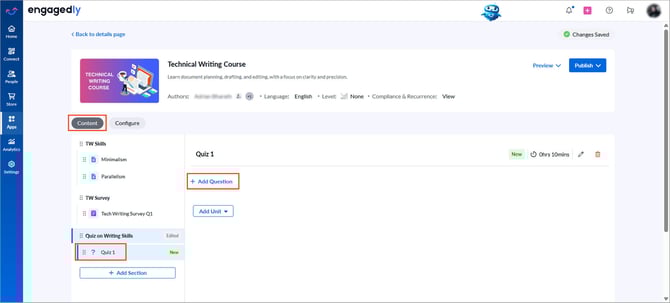
5. Enter the question, select a question type, and click Save.
Question types
Select a question type to define how learners respond to quiz questions. Each question type has its own configuration.
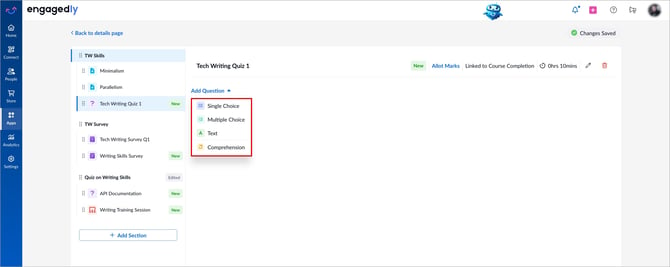
-
Single choice and multiple choice
Use these types to provide answer options and define correct answers.
- Enter the answer options.
- Select the correct answer.
- (Optional) Reorder the options.
- (Optional) Add a description for the correct answer.
-
Text
Use this type to collect text-based responses.
- Enter the correct answer.
- Assign points for each word included in the answer.
-
Comprehension
Create a passage with related questions.
To add a comprehension passage
- Enter the passage title.
- Enter the passage content.
- Click Save.
To add questions to the passage
- Click Add question to passage.
- Select a question type:
- Single Choice
- Multiple Choice
- Text
📒Note: The question types available for quiz and comprehension use the same configuration.
Manage a question
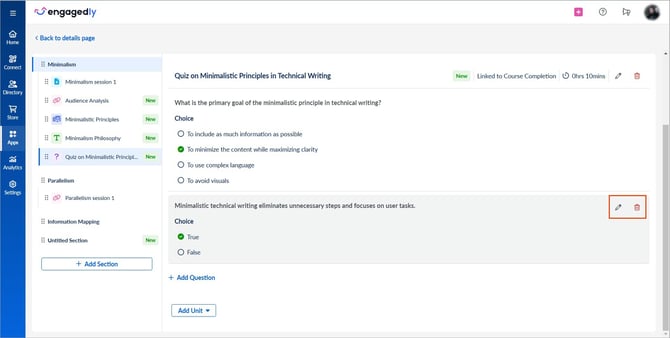
After adding questions, you can edit, delete, reorder them, or add per-question marks if required.
- Hover over a question, click the Pen
 icon to edit or the Delete
  icon to remove the question.
 - Drag and drop the Six Dot
 icon to reorder quiz questions, including the choices within a question.
 - While editing a question, drag and drop the Six Dot icon to reorder the answer choices.
Allot marks (Optional)
After adding questions, assign marks to each question and define the total quiz score.
- At the top of the quiz, click Allot Marks on the right.
- Enter the overall quiz marks.
- Click Auto-distribute to evenly assign marks across all questions or enter marks manually for each question.
- Click Save.
ℹ️Additional information:
- You must add at least one question to a quiz before publishing the course.
- After creating the course, publish it and push it to the library to assign it to learners. Learn more in the Publish course.
- You can view learners' quiz responses and reset failed quizzes. Learn more in View quiz responses and reset quiz.
- Changes are auto-saved within the course. Publish the course to make updates available to learners.