![Engagedly dark.png]](https://help.engagedly.com/hs-fs/hubfs/Engagedly%20dark.png?height=31&name=Engagedly%20dark.png)
After creating a course, authors can add sections and units to it and manage them. Adding sections and units to a course is necessary to organize the course content effectively and provide a structured learning experience for learners.
After adding sections and units, you can preview the course.
Add a section
After creating a course, you are redirected to the course edit page to add sections and units.
If you prefer to add them later, follow these steps. You can add sections and units to a course that you authored.
Navigate to Apps > Learning > Author.
- Go to the Authored by you tab and open a course.
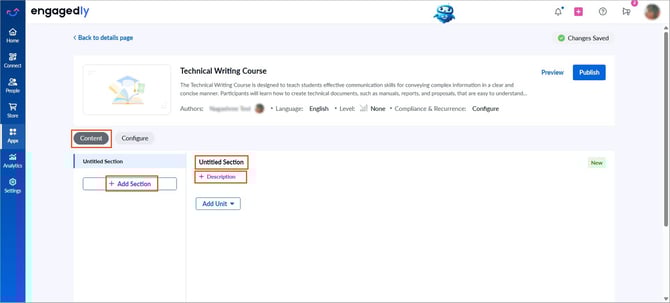
- In the “Content” tab:
- Click Untitled Section, enter the name, and click the Tick
 icon to save it.
 - Click Description, enter it, and click the Tick icon to save it.
- Click Untitled Section, enter the name, and click the Tick
Add multiple sections to a course to group related topics, providing a clear structure and seamless learning experience.
- Click Add Section to add another section.
Add a unit
After adding a section, add multiple units to it.
- Click Add Unit and select the unit type.
📒Note: You can add units to a course without adding the section. However, if you add a section after adding units, the existing units automatically move into the section.
Types of units
The following types of units are available. Add them to a section as required.
- Document: Upload a PDF file, allowing the learner to download it.
- Media: Upload a video or audio file, allowing the learner to download it.
- URL: Enter the link.
- Quiz: Add a quiz to the section and configure the following:
- Display the correct answers after completion.
- Set the passing score.
- Link the quiz result to course completion.
📒Note: If you enable the option Link the quiz result with course completion and a learner fails in the quiz, the course status remains in progress.
-
- Allow learners to retake a failed quiz.
- Set the number of retake attempts.
- Text: Enter content in the text format.
- Instructor training: Add sessions and attendees to the training.
- AICC: Add an AICC package and link its completion to the course completion if required.
- SCORM: Add the SCORM package and link its completion to the course completion if required.
📒Note: You must navigate to the respective URL to preview the AICC and SCORM units.
- LTI: Select the connector.
📒Note: If you have H5P integration with Engagedly, you can import content from H5P within Engagedly's LXP. Learn more in Integrate H5P with Engagedly.
- Survey: Add the survey to a section and configure the following:
- Link the survey to course completion.
Configure additional settings
- Set the estimated time to complete the unit (applies to all unit types).
- Select the criteria to unlock the next unit after completing the current unit (applies to all unit types except Quiz, ILT, AICC, SCORM, LTI, and Survey).
Manage a section
After creating a section, edit or delete it if required.
- In the “Content” tab, select a section on the left.
- Click the section name and description on the right.
- Edit them as required and click the Tick
 icon to save the changes.
 - Click the Delete
 icon on the right side of the description to remove it.
 - Drag the Six Dot
 icon on the left to rearrange the sections.
The changes are auto-saved.
📒Note: Deleting the section deletes its units.
Manage a unit
After adding a unit, edit or delete it if required.
- In the “Content” tab, select a unit on the left.
- At the top right of a unit, select the Pen
 to edit or the Delete icon to remove as required.
 - Drag the Six Dot icon on the left to rearrange the units.
If you add quiz, training, and survey units to a course, you must include questions in the quiz, sessions in the training, and questions in the survey, respectively.
Preview a course
After adding sections and units to a course, preview it to ensure everything is correct.
- On the course details page, click Preview at the top right.
- Select Published Version or Edited Version as required.
📒Note: These options are not available when you publish a course for the first time. However, after editing a published course, you can preview both the published version and the edited version.
You must navigate to the respective URL to preview the AICC and SCORM units.
4. Select the AICC or SCORM unit on the left and click Start on the right.
You are redirected to the AICC or SCORM unit.
After previewing the course, publish it. Learn more in Publish a course.