![Engagedly dark.png]](https://help.engagedly.com/hs-fs/hubfs/Engagedly%20dark.png?height=31&name=Engagedly%20dark.png)
After creating a course, add sections and units to structure the content. If a survey unit is added, you must add questions to it and manage them if required.
Survey helps authors collect context-specific feedback and gain actionable insights. Learners can respond to surveys in real-time or skip them based on the author’s settings. Organizations can use survey responses to improve course effectiveness and learner satisfaction.
Survey question types
Learning supports the following survey question types:
- Multiple choice
- Single choice
- Rating scale
- Employee net promoter score (eNPS)
- Text-type
Add a question
You can add survey questions only to courses that you authored.
Navigate to Apps > Learning > Author.
- Go to the Authored by you tab.
- Open a course and click Edit on the right.
- In the “Content” tab, add a survey unit or select an existing survey unit from the left panel.
- Click + Add Question on the right and select a question type.
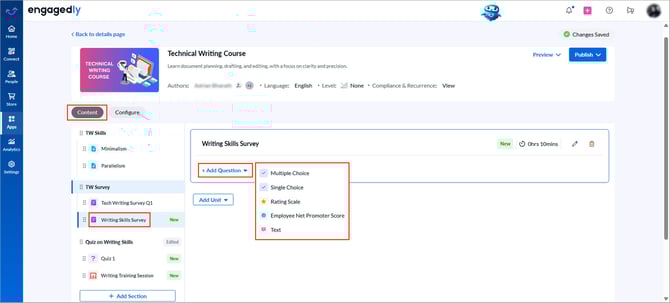
5. Enter the question and click Save.
Question types
- Single-choice and multiple-choice questions: Enter the answer choices. You can edit or delete the choices if required.
Manage a question
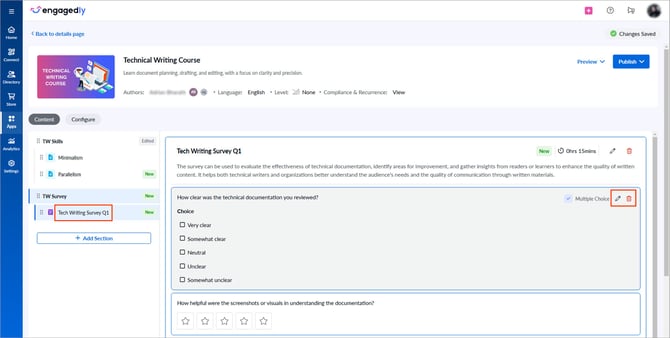
After adding questions, edit or delete them if required.
On the right side of a question, select the Pen  icon to edit or the Delete
  icon to remove it.
ℹ️Additional information:
- You must add at least one question to a survey before publishing the course.
- After creating the course, publish it and push it to the library to assign it to learners. Learn more in the Publish course.
- You can view and export learners’ survey responses. Learn more in View and export survey responses in learning.
- Changes are auto-saved within the course. Publish the course to make updates available to learners.