![Engagedly dark.png]](https://help.engagedly.com/hs-fs/hubfs/Engagedly%20dark.png?height=31&name=Engagedly%20dark.png)
Assign templates to participants so reviewers receive the right questionnaire for each participant during a 360 feedback cycle. Admins can assign different templates to different participants, assign a template to more participants, unassign a template, or remove all assignments for a template.
💡Tip: Review and finalize template assignments before you launch the cycle. Changing templates after reviews begin can disrupt the review process.
Before you begin
- To assign different templates to different employees, select Assign different templates to different employees under “Template & Rating Setup”.
- Add participants to the cycle before assigning templates.
- Sign in as an admin or as an employee with the “Manage multirater reviews” permission.
Assign templates to participants
Navigate to Apps > 360 Feedback > Cycles.
- Locate the cycle you want to assign a template.
- Click Manage on the right side of a cycle.
- Open the Templates tab and select one of the following:
-
- SELECT FROM TEMPLATE LIBRARY to use an existing template.
- CREATE NEW TEMPLATE to create a new template. For more information, refer to the Create a 360 feedback template.
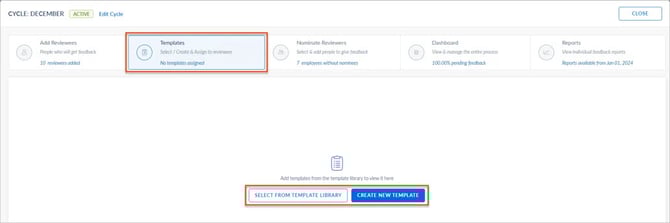
4. If you select a template from the library, select the template, and click SELECT. Templates added from the library appear in the left pane.
5. Select a template in the left pane, then click ASSIGN.
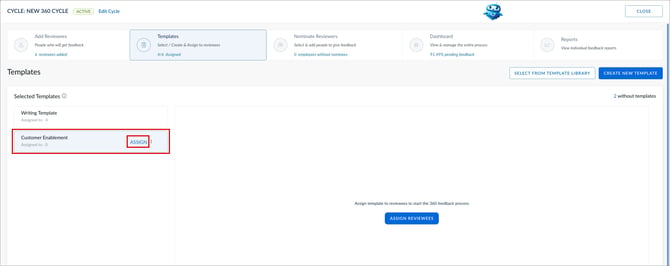
6. Select specific participants or all participants who should receive the template and click ASSIGN at the top right.
The assigned template defines the questionnaire reviewers complete for each participant.
💡Tip: Before you assign the template, check the list of participants you added to the cycle.
Manage template assignments
You can assign a template to more participants, unassign it from selected participants, or remove all assignments for a template.
⚠️Warnings:
- Unassigning a template deletes the feedback progress of the selected participants.
- Removing all assignments deletes the feedback progress of every participant assigned that template.
Navigate to Apps > 360 Feedback > Cycles.
- Find the cycle whose template assignments you want to manage.
- Click Manage on the right side of the cycle.
- Open the Templates tab.
- Click the current template in the left pane.
- Click MANAGE on the right and select one of the following:
- Assign More: Select the additional participants and click ASSIGN.
- Select & Unassign: Select the participants and click UNASSIGN to remove the template assignment from them.
- Remove all assignments: Click REMOVE to the template from all assigned participants.
📒Notes:
- Template assignment is available only when the cycle uses “Assign different templates to different employees” configuration.
- Participants who do not have an assigned template cannot proceed in the review process.
- Unassign template is not available when feedback is locked.
Manager access
If admins allow it, managers can also assign templates and manage template assignments for their direct reports. For more information, refer to Manage ongoing 360 feedback for your direct reports.