![Engagedly dark.png]](https://help.engagedly.com/hs-fs/hubfs/Engagedly%20dark.png?height=31&name=Engagedly%20dark.png)
A 360 feedback template is a questionnaire used to gather feedback from several sources to evaluate an employee's performance, skills, behaviors, and competencies. A template can include multiple sections, and each section can have subsections and questions.
Engagedly provides predefined templates in the Engagedly library. Admins and individuals with “Manage multirater templates” permission can also create custom templates that align with the organization’s goals, values, and evaluation criteria. Learn more about Roles and permissions.
Template creation helps admins include questions, competencies, and feedback areas in the 360 feedback form, ensuring a well-rounded and multi-perspective evaluation.
Access template libraries
Navigate to Apps > 360 Feedback > Templates.
The “Templates” page includes the following tabs:
- My Templates: Contains all templates you created, both saved and published templates. Published templates have a "Published" label.
- Organization Library: Contains all published templates, including yours and those published by other admins. You cannot edit, delete, or archive templates created by other admins.
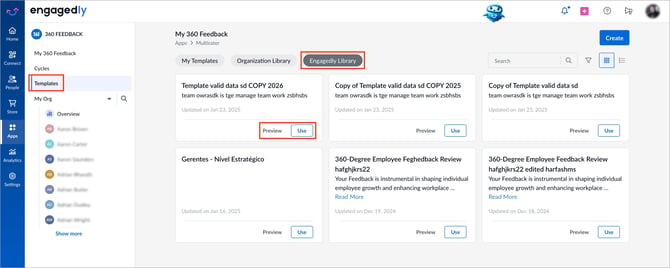
- Engagedly Library: Contains predefined templates. Preview a template or add it to your organization library to customize it and use it in 360 feedback cycles.
On the “Templates” page, you can:
- Search templates by name.
- Click the Filter
 icon to filter by status, or select Show only Favourites.
 - Click the Star
 icon on a template to mark it as a favourite.
 - Switch between grid view and list view.
- Click Preview on a template to view it from the respondent's perspective, or Assign to assign it to reviewees.
Use a template from the Engagedly Library
Navigate to Apps > 360 Feedback > Templates.
- Open the Engagedly Library tab.
- Locate the template you want to use.
- Do one of the following on a template:
- Click Preview to preview the template's sections and questions from the respondent’s perspective.
- Click Use to copy the template to the “Organization Library, where you can edit and publish it.
📒Note: To preview the template, you must add a template to a 360 feedback cycle.
Create a template
You can create a custom 360 feedback template tailored to your organization’s requirements.
Navigate to Apps > 360 Feedback > Templates.
- Click Create.
- Do one of the following:
- Select Create from Scratch, enter the template name, and click Create.
- Select Pick from Engagedly Library, then click Preview or Use on a template.
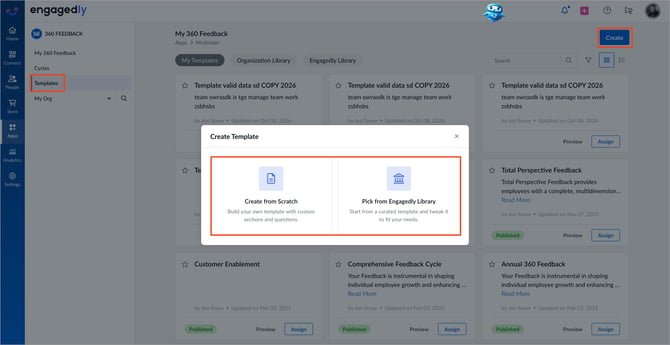
If you select a template from the “Engagedly Library”, the template editor opens. Make the required changes, click Save at the bottom right, and then click Publish at the top right to add the template to the “Organization Library”.
📒Note: In the template editor, you enter titles, descriptions and settings in the "Settings" panel on the right. Select a section, subsection or question to see its settings.
Add a section to the template
When you create a new template, the template editor opens so you can add sections, subsections, and questions.
- Enter the section title and description.
- (Optional) Click Add competency from library, search for a competency, and click Add.
- Open the Add section drop-down and select Section to add another section.
📒Note: Use @EmployeeName in a title or description to show the employee's name. This works for sections, subsections and questions.
Add subsections to the template
After a section is saved, the subsection field and subsection number appears automatically.
- Click + Add under the section.
- Enter the subsection title and description.
- Use the toggle to enable the rating and comments for the subsection.
- Use the toggle to enable Required to make the rating and comments mandatory for the subsection.
- Click outside the text box to save the subsection.
You can add multiple subsections to each section. Each subsection has its own rating and comment settings.
Add questions to the template
After a subsection is saved, the question field and question number appears automatically.
- Click + Add under the subsection.
- Enter the question title and description.
- Click outside the text box to save the question.
You can add multiple questions to each subsection. Respondents answer each question using the rating and comment settings of its subsection.
Manage sections, subsections, and questions
- All fields support inline editing. Make the required changes directly in the fields, then save your changes.
- Click the Six Dot
 icon and drag a section, subsection, or question to reorder it.
 - Click the Delete
 icon to remove a section, subsection, or question from the template.
Add job competency section
The job competency section adds the competencies mapped to the reviewee's job title. Competencies are pulled from the reviewee's job title when the review is launched.
Before adding a job competency section, ensure that job competencies are mapped to the employee’s job title.
- Open the Add section drop-down and select Job Competency.
- (Optional) Update the section title and enter a description.
- Use the toggle to enable the rating and comments for the subsection.
- Use the toggle to enable Required to make the rating and comments mandatory for the subsection.
- Open the drop-down and select Competency or Behaviour to specify what to rate and comment on.
- Click outside the text box to save the subsection.
Add importance rating section
The importance rating section asks respondents to select the competencies or behaviors they consider most important for the reviewee's success in their job. This helps the employee understand which competencies and behaviors their coworkers value and decide where to focus their development.
For more information, refer to Understand importance rating in 360 feedback report.
- Open the Add section drop-down and select Importance Rating.
- (Optional) Update the section title and description.
- Open the drop-down and select Competency or Behaviour to mark it as important and add a comment.
- Use the toggle to enable Enable comments and Required to make the comments mandatory.
- Click outside the text box to save the subsection.
📒Note: When you add a job competency section, an importance rating section becomes available. Add it if required.
Save and publish the template
After you create a template:
- Click Preview at the bottom right to review the full template structure from the respondent’s perspective.
- Click Save at the bottom right to save the template under “My Templates”, where only you can access it.
- Click Publish at the top right to publish the template to the “Organization Library”, where all admins can access it. The template also stays in "My Templates" with a "Published" label.
After you publish the template, you can assign it to an existing 360 feedback cycle or use it when you create a new cycle.
Next steps
After you create a template:
- Manage a 360 feedback template.
- Add reviewees in a 360 feedback cycle.
- Assign a 360 feedback template to reviewees.
For definitions of key 360 feedback terms, refer to Understand the key concepts of 360 feedback.
💡Tips:
- You can add as many sections as required, but aim for respondents to complete the entire 360 feedback form in 10–15 minutes.
- Add at least one subsection or question to each section to ensure the feedback is meaningful.
- Add relevant questions and select appropriate response types (such as ratings, multiple choice, or text responses) to collect meaningful feedback and generate valuable insights.
- Decide whether each subsection needs a rating, comments or both. Make them required only where the answer is essential.