![Engagedly dark.png]](https://help.engagedly.com/hs-fs/hubfs/Engagedly%20dark.png?height=31&name=Engagedly%20dark.png)
Admins and managers can create and send a new instant feedback survey to your team members, including everyone in their management hierarchy.
1. Open instant feedback
Navigate to Apps > Butterfly EI > Instant Feedback.
- If you are creating instant feedback for the first time, click Create your first Instant Feedback request. Otherwise, click New Instant Feedback at the top left.
⚠️ Warning: If you navigate away from the creation page before submitting the instant feedback, your entries are not saved.
Creating instant feedback involves four steps: Audience, Questions, Translations, and Schedule.
2. Define the audience
- In the “Audience” step, select the team or teams you want to send the survey to. You can select only teams under your management.
- (Optional) Select I want to be included in the audience to participate in the survey.
- Click Refine audience at the bottom left.
- Select a field and its corresponding value to filter the audience.
- If you select multiple fields, choose how to apply the filters:
- Match every field includes employees who meet all the selected criteria.
- Match any one field includes employees who meet at least one of the selected criteria.
- (Optional) Click Add filter to add more filters and values.
You can filter the audience using various employee fields, such as job title, tenure, age group, gender, department, and business unit. - Click Next.
📒Note: If employees are synced from Engagedly to Butterfly, they automatically appear in the audience list.
3. Add questions
- In the “Questions” step, enter a title for the survey, and (optional) a description.
- Enter your question and select a question type: Single/Multi Choice or Open Ended.
- If you select Single/Multi Choice:
- Add the answer options.
- Add as many options as required.
- Remove an option if required.
- (Optional) Enable Allow comments for each option to allow respondents to provide additional context.
- To add another question, click the Plus
 icon on the right, and repeat the previous steps.
 - To remove a question, click Delete above the question number.
3. Click Next.
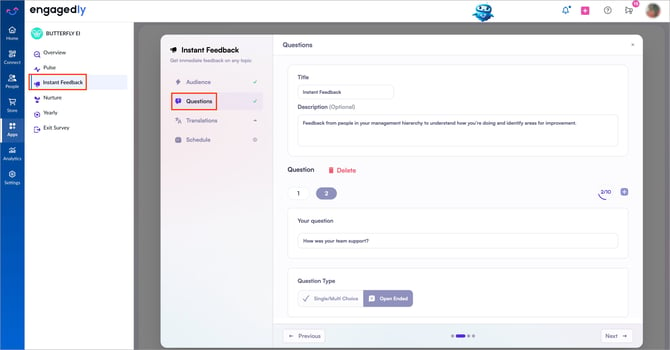
📒Note: You can add up to a maximum of 10 questions in an instant feedback.
4. Manage translations
- In the “Translations” step, localize the survey text as required.
- Click Next.
📒Note: For audiences who speak English, the survey is ready to use without any additional translation.
5. Schedule the survey
- In the “Schedule” step, adjust the Lifetime slider to set how many days the survey remains active.
- Select when to send the survey:
-
- Send Now to send the survey immediately.
- Send Later to schedule the survey for a future date and time.
3. Click Submit to launch the survey.
📒Note: An instant feedback survey can remain active for a minimum of 3 days and a maximum of 30 days. By default, recipients have 7 days to respond and receive one automatic reminder. If you adjust the Lifetime slider, the survey remains active for the number of days you set.
After creating instant feedback, manage it as required. For more information, refer to Manage an existing instant feedback.