![Engagedly dark.png]](https://help.engagedly.com/hs-fs/hubfs/Engagedly%20dark.png?height=31&name=Engagedly%20dark.png)
Admins can create and manage baselines for engagement surveys.
What is a baseline
A baseline is a reference score used to compare engagement survey responses. It helps organizations measure employee sentiment and evaluate the effectiveness of employee engagement initiatives.
Types of baselines
-
Cycle period baseline: Represents the “This Survey” baseline. Each question has a baseline represented by its favorable score. The baseline is automatically generated based on survey responses. You can compare responses against the cycle period baseline for completed survey cycles.
-
Custom baseline: Admins can manually create a baseline and define the favorability score for each question.
For more information, refer to the Favorability score.
Create a baseline
You can create a baseline from the analytics view of an engagement survey assignment.
Navigate to Apps > Surveys.
- Scroll down to All Surveys.
- Open the engagement survey where you want to create the baseline.
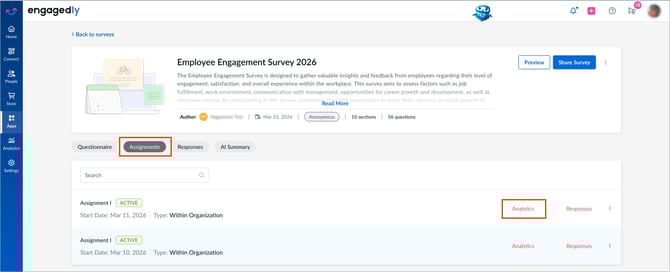
- Go to the Assignments tab.
- Click Analytics on an assignment.
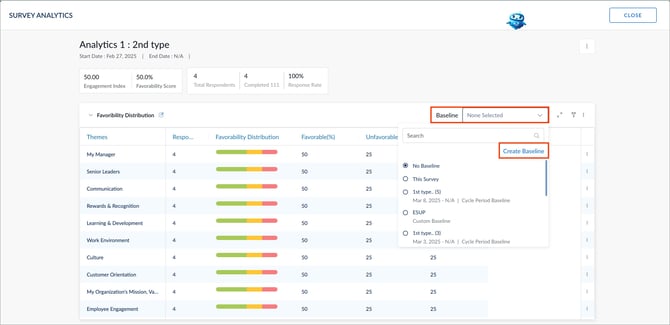
5. Open the drop-down in the “Baseline” field and select Create Baseline.
6. Enter the baseline title.
7. Enter the favorability score for each question to consolidate the overall score for that section.
8. Click CREATE.
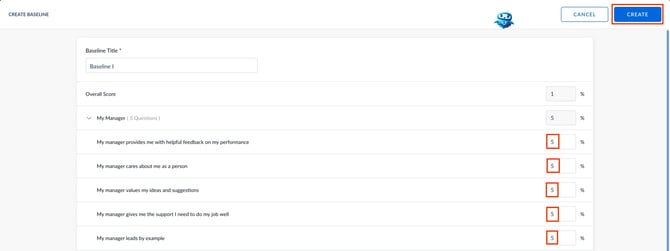
📒Note: Entering scores for all questions is mandatory.
After creating the baseline, the system automatically generates:
- The overall score for all sections.
- The average score for each section based on the scores defined for each question.
Manage baselines
You can only manage the baselines that you create.
- Open the drop-down in the “Baseline” field.
- On the right side of the baseline, do one of the following as required:
-
- Click the Edit
 icon to update the title and scores.
 -
Click the Delete
 icon to permanently remove the baseline.
- Click the Edit
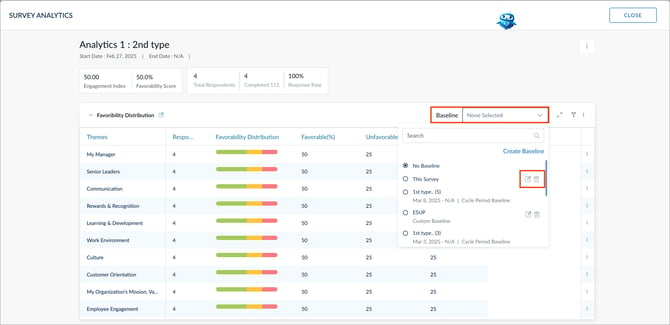
The system uses the baseline as the reference score when generating the heat map in survey analytics. For more information, refer to the Heat map.