![Engagedly dark.png]](https://help.engagedly.com/hs-fs/hubfs/Engagedly%20dark.png?height=31&name=Engagedly%20dark.png)
Employees, managers, and admins can import meetings from their calendar, streamlining scheduling and organization. This ensures that all important discussions are accessible within the platform, helping teams stay informed, aligned, and productive.
Navigate to Apps > Meetings > My Meetings.
If you are scheduling meetings for the first time:
- Click Schedule for one-on-one meetings. Learn more in Schedule a one-on-one meeting.
- Click Create for general meetings. Learn more in Create a meeting.
- Click Import for importing existing meetings from your calendar. Learn more in Import a meeting.
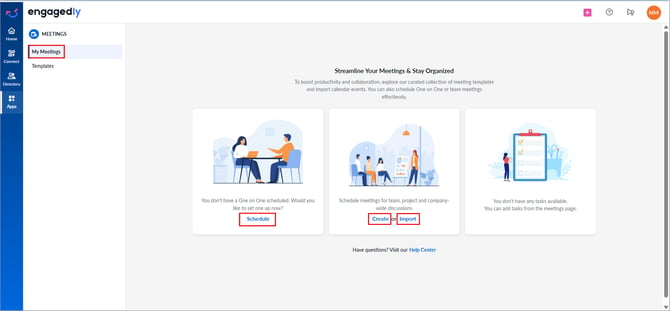
📒Note: This page appears only when no meetings are scheduled.
Prerequisites
Before creating meetings in Engagedly for the first time, it is recommended to connect your Google or Microsoft account to sync meetings with your calendar. This integration ensures that your scheduled meetings are easily accessible within the platform, helping you manage your time efficiently.
Contact our support team for calendar integration. After integration, link your Google or Microsoft account to sync meetings with your calendar.
If you have not connected your calendar, an alert appears at the top of the page after you schedule a meeting.
Navigate to Apps > Meetings > My Meetings.
- Click Connect now at the top of the page, or click Schedule at the top right and select Import from calendar.
📒Note: If you have already created a meeting, perform this step. If you are scheduling for the first time, click Import.
2. Open the drop-down and select a Google or Microsoft account.
3. Click Sign in with Google if you use Google Calendar, or click Connect if you use Microsoft.
4. Log in to your account, click Continue, and then click Allow to authenticate your account with the calendar.
📒Note: The meeting organizer’s email ID must match their Engagedly email ID to view the meetings they create in the Meetings module.
Import a meeting
You can import upcoming meetings from your connected calendar, but you cannot import past meetings.
Navigate to Apps > Meetings > My Meetings.
- Click Schedule at the top right and select Import from calendar.
- Open the drop-down to filter meetings by participants.
- Click the Calendar
.png?width=20&height=20&name=calendar%20(2).png) icon to select dates and view meetings for a specific period.
icon to select dates and view meetings for a specific period. - Click the Sort
 icon and select I am the organizer or I am the attendee as required.
 - Hover over a meeting.
- (Optional) Select Import as One on One to convert the meeting into a one-on-one.
📒Note: This option is available only when the meeting includes exactly two participants.
7. (Optional) Select Enable notifications for all participants of the meeting.
📒Note: Participants can mute notifications, even when the organizer enables them while importing.
8. Hover over a meeting and click Import.
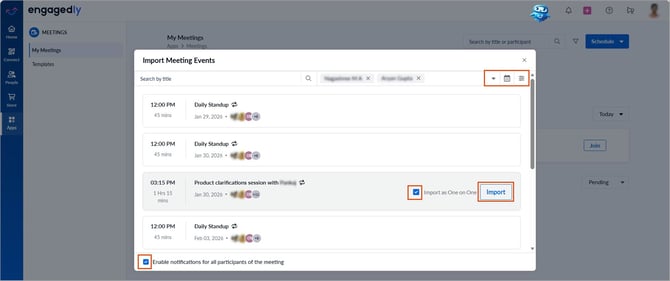
9. If the meeting is recurring, select This meeting or All upcoming meetings in this series as required, and click Import.
Remove an imported meeting
Admins can remove an imported meeting from Engagedly if it is no longer required. This removes the meeting from the listing and dashboard but does not delete it from the external calendar (Google Calendar or Microsoft Calendar).
There are two ways to remove a meeting.
Navigate to Apps > Meetings > My Meetings.
Option 1:
- Click the Overflow
 Menu on the right side of the imported meeting.
 - Select Delete meeting.
- (Optional) Deselect Remove meeting from calendar if you want to keep the meeting on your calendar. By default, it is selected.
- Click Delete Anyway to confirm the action.
Option 2:
- Open an imported meeting to navigate to the “Meeting Details” page.
- Click the Overflow
 Menu at the top right.
 - Select Delete Meeting.
- (Optional) Deselect Remove meeting from calendar if you want to keep the meeting on your calendar. By default, it is selected.
- Click Delete Anyway to confirm the action.
⚠️Warning: Deleting a meeting removes any content associated with it.
📒Note: Only admins can remove imported meetings. The meeting remains in the organizer's external calendar (Google Calendar or Microsoft Calendar) and is not affected by this action.
Next steps
If you are the meeting organizer, you can manage the meeting and perform all available actions. If you are a participant, you can perform limited actions, such as copying discussion points, syncing the meeting with your calendar, and exporting meeting details. Learn more in Manage a meeting.
After importing a meeting, you can add discussion points to it. Learn more in Add and manage discussion points.