![Engagedly dark.png]](https://help.engagedly.com/hs-fs/hubfs/Engagedly%20dark.png?height=31&name=Engagedly%20dark.png)
Table of contents
- Introduction
- Integration process
2.1. Enable Learning Planet
2.2. Course sync - Configure course categories
- Import Learning Planet courses
1. Introduction
Learning Planet is a globally recognized provider of microlearning content, specializing in soft skills training through short, impactful videos and workbooks. Their 1-minute and 10-minute video modules are widely used for being concise, engaging, and highly effective.
Engagedly integrates with trusted content providers like Learning Planet to support organizations that prefer ready-to-use learning content over building it from scratch. Engagedly continuously expands and enriches the learning content available within the platform.
📒Note: This document covers the integration setup for both Tangerine (V2) and Indigo (V3). Screenshots are captured from Indigo (V3), so the user interface may vary slightly in Tangerine.
2. Integration process
Contact our support team to enable the Learning Planet for your organization. Once enabled, the application status changes to “AVAILABLE”, allowing you to proceed with the connection.
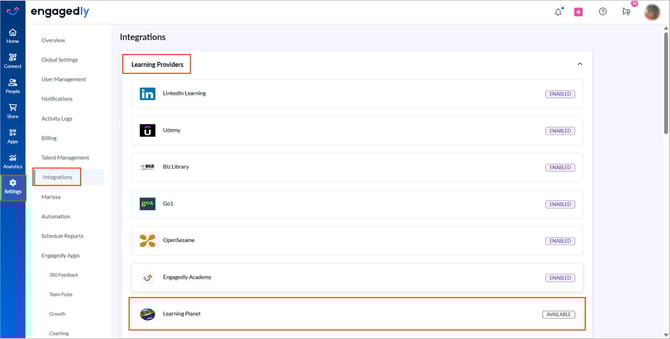
Navigate to Settings > Integrations in Engagedly to verify the status.
In the “Learning Providers” section, Learning Planet appears as an available option.
Prerequisites
- Active subscription to Engagedly’s Learning app.
- Admin access to Engagedly.
2.1. Enable Learning Planet
After Learning Planet is enabled by our support team, you can enable it to import courses seamlessly.
Navigate to Settings > Integrations in Engagedly.
- In the “Learning Providers” section and click Learning Planet.
2. Use the toggle to enable the connection and click SAVE.
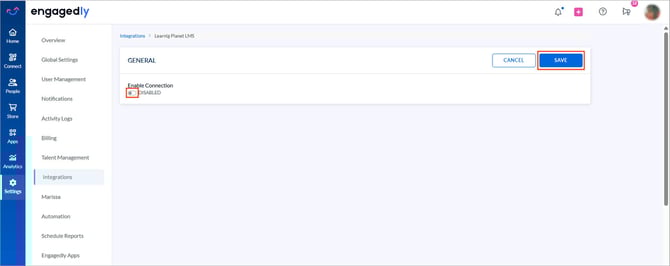
Leaning Planet is successfully connected with Engagedly.
2.2. Course sync
After the connection is enabled, you can refresh course data to fetch the latest content from Learning Planet.
-
Click SYNC MANUALLY to retrieve the most recent courses and updates.
-
Automatic synchronization occurs daily.
Use manual sync when:
-
New courses are added in Learning Planet.
-
Course details are updated.
-
You want immediate content updates instead of waiting for the scheduled sync.
3. Configure course categories
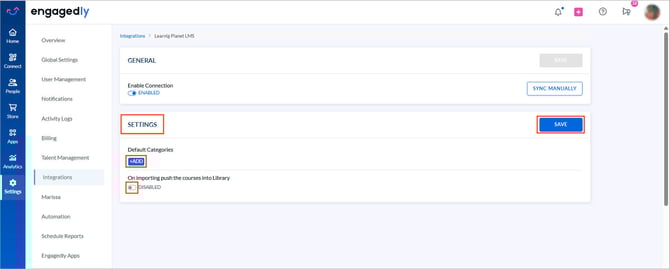
After integration, you can categorize imported courses in Engagedly. This step is optional but recommended.
- Click +ADD under "SETTINGS".
- Select the required categories and click SELECT.
- Click the Settings
 icon to create a new category if required.
 - Use the toggle to push imported courses into the Engagedly library.
- Click SAVE.
4. Import Learning Planet courses
After connecting Learning Planet, you can import courses into Engagedly.
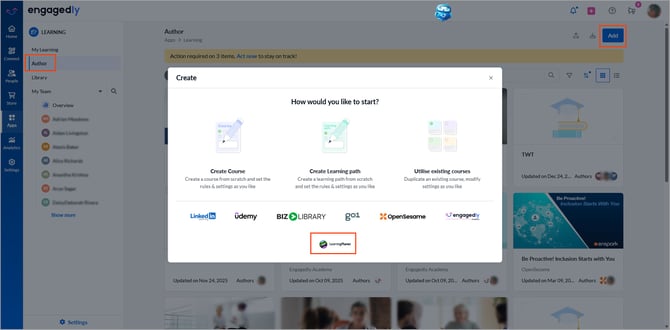
Navigate to Apps > Learning > Author.
- Click Add at the top right.
- Select LearningPlanet from the provider list.
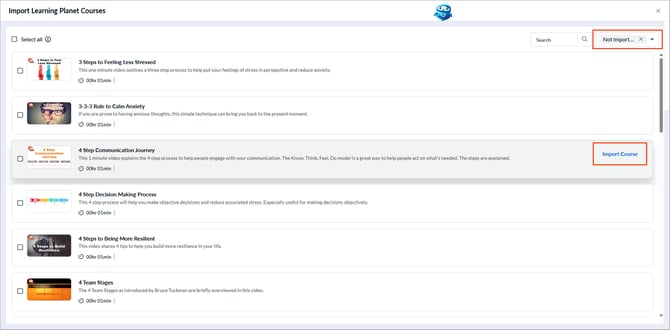
3. Browse through a list of courses that contains the course name, description, duration, author, and level.
4. Open the drop-down at the top right to filter not “Imported” or “Not imported” courses.
Import a single course:
-
Hover over a course, click Import Course, and then click Import to confirm.
Bulk import courses
- Enable Select all at the top left or manually select courses.
View the selected count at the top left.
2. Click Import Selection at the top right and then click Import to confirm.
After importing:
- Assign courses to learners.
- Imported courses are published to the Engagedly library only if the import setting was enabled during connection.
- Employees can access and enroll in these courses from the library.
- You can also assign the Learning Planet courses through the learning automation workflow or smart assignments.