![Engagedly dark.png]](https://help.engagedly.com/hs-fs/hubfs/Engagedly%20dark.png?height=31&name=Engagedly%20dark.png)
After creating a course, authors can manage it even after publishing. Authors can edit, delete, push courses to the library, or remove them from the library for courses they authored.
Admins can assign the “Manage courses” permission to anyone in the organization, allowing them to manage courses. For more information about roles and permissions, refer to the Overview of user management.
Navigate to Apps > Learning > Author > Authored by you.
Filter the course
Filter the courses to quickly locate them by different search criteria.
- Click Filter
 at the top right.
 - Select one or more criteria from the list.
- Click Apply.
📒Note: Click Clear (or remove the selected category chip) to reset the filter and view all courses. If the filters are not cleared, they remain even if you refresh the page.
Open a course
After filtering a course, manage it as required.
- Open a course.
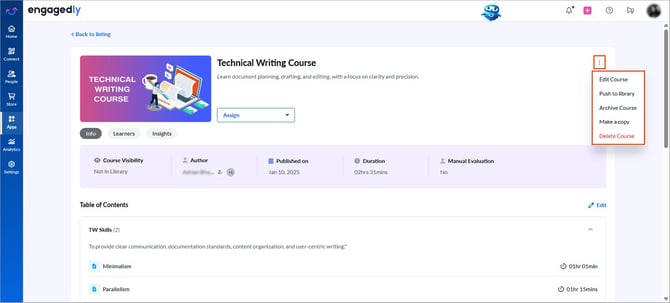
- Click the Overflow
 Menu at the top right and select the required action:
- Edit Course: Modify the course content and configure settings.
- Push to library: Publish a course to the library.
- Remove from library: Available after publishing a course. Remove a published course from the library.
- Archive Course: Hide a course from the library.
After archiving a course, you can unarchive it at any time.
- Unarchive Course: Available after archiving a course. Restore an archived course to the library.
To unarchive, filter archived courses in the “Authored by you” tab, open a course, click the Overflow  Menu at the top right, and select Unarchive Course.
- Make a copy: Duplicate the course.
- Delete Course: Permanently remove a course from the library.
📒Note: You cannot edit the archived course. However, you can unarchive and delete it. Learn more about the functional behaviors of archived courses.
📒Note: If the admin is not an author or co-author, they can only view the “Info” and “Learners” tabs on the course details page. Authors and co-authors can view the “Info”, “Learners”, and “Insights” tabs.
After managing a course, publish it to assign it to learners.
Authors and co-authors can also manage learners in the course if required.