![Engagedly dark.png]](https://help.engagedly.com/hs-fs/hubfs/Engagedly%20dark.png?height=31&name=Engagedly%20dark.png)
Employees, managers, and admins can access the “My Meetings” page to schedule, manage, and track meetings. You can schedule one-on-one or team meetings, or import existing meetings from your calendar.
Access the page
Navigate to Apps > Meetings.
The “My Meetings” page opens.
If you are scheduling a meeting for the first time:
- Click Schedule for one-on-one meetings.
- Click Create for team meetings.
- Click Import to import meetings from your calendar.
📒Note: This page appears only when no meetings are scheduled.
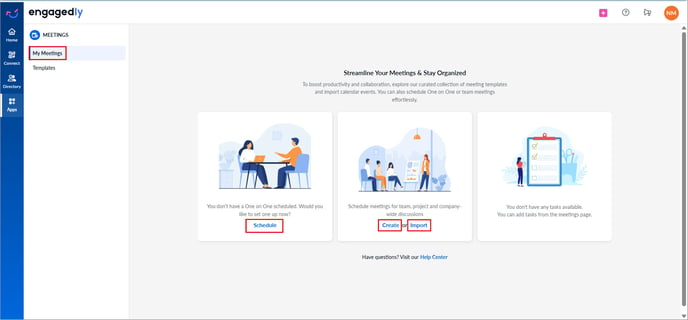
You can also create meeting templates or use existing ones to schedule meetings. Learn more in Create and manage meeting templates.
Schedule meetings
All scheduled meetings appear on the "My Meetings" page, which includes
My one-on-one
- Save, schedule, and manage one-on-one meetings.
📒Note: You cannot remove participants after adding them after scheduling a meeting. To make changes, delete the saved meeting and create a new one.
- Hover over a meeting and click Join to open the meeting platform (if your calendar is connected).
My meetings
Only organizers can edit or delete meetings.
- View all team meetings by day or date.
- Click Join to open the meeting platform (if your calendar is connected).
- Click the Overflow
 Menu next to a meeting for additional actions: Edit meeting, End recurrence, and Delete meeting.
 - Click a meeting to perform additional actions:
- Add and manage discussion points
- Add and mange sections
- Add and manage notes
- Add and manage tasks
- Add and manage meeting reflections
- Add attachments
- Manage meeting recurrence
- Nudge the meeting participants
- Copy discussion points
- Join the meeting
- Conclude the meeting
Tasks
The task section displays all meeting-related tasks.
- View tasks by all, pending, and completed statuses.
- Select a task to mark it as complete.
- Deselect a task to mark it as pending.
- Hover over a task and click the Delete
 icon to remove it.
Connect to your calendar
You can link your Google or Microsoft account to sync meetings with your calendar. This integration helps you manage meetings and time efficiently.
- Click Connect now at the top of the page.
- Click Schedule at the top right and select Import from calendar.
- Click the Select Account drop-down and select an account.
- Click Sign in with Google (for Google Calendar users).
- Select your account, click Continue, and then click Allow to authenticate your account with the calendar.
📒Note: The meeting organizer’s email ID must match their Engagedly email ID to view the meetings they create in the Meetings module.
After connecting your calendar, you can schedule one-on-one meetings, create team meetings, and import existing meetings. Learn more Schedule one-on-one meeting and Create and import meeting.
Engagedly supports two-way sync between your calendar and the Meetings module. Any edits or deletes made in Outlook, Google Calendar, or Microsoft Calendar automatically update in Engagedly.