![Engagedly dark.png]](https://help.engagedly.com/hs-fs/hubfs/Engagedly%20dark.png?height=31&name=Engagedly%20dark.png)
Goal templates help streamline the goal-setting process by providing ready-to-use formats that align with organizational objectives. Admins can create custom templates tailored to their organization’s needs, ensuring consistency and clarity across the organization.
Engagedly also provides a library of predefined templates based on proven frameworks like SMART goals and objectives and key results (OKRs), allowing employees to set effective goals quickly and stay aligned with industry best practices.
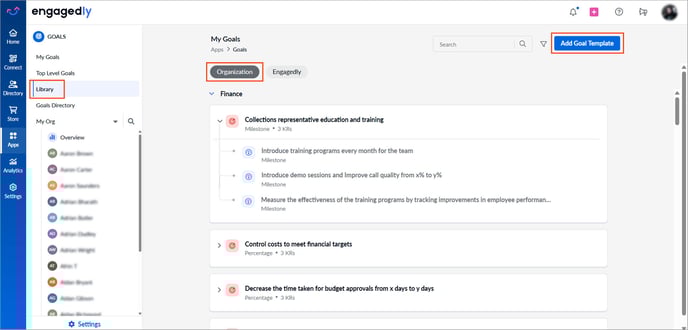
Navigate to Apps > Goals > Library.
Create a new template
- In the "Organization" tab, click Add Goal Template at the top right.
📒 Note: The Add Goal Template option is available only in the "Organization" tab.
2. Add a title.
3. Open the drop-down and select a measurement type.
- Percentage: For a proportional target.
- Quantity: For numerical targets.
- Milestone: For specific checklist items.
4. Open the drop-down and select goal categories relevant to the goal template.
📒Note: This option is visible only if categories are enabled for your organization.
5. Type the key result, click the drop-down next to it, and select a measurement type.
You can add multiple key results or delete them if required.
6. Click Add.
Manage a template
After adding a template, you can edit or delete it.
Click the Edit  or Delete
  icon on a template as required.
After creating a template, it is saved in the Organization library, making it accessible to all employees.
Learn more in Create a goal using library.