![Engagedly dark.png]](https://help.engagedly.com/hs-fs/hubfs/Engagedly%20dark.png?height=31&name=Engagedly%20dark.png)
Workflow automation for learning enables admins to assign courses automatically to employees.
Assign Courses to Users
Follow the steps below to create a learning automation
Step 1: Navigate to Admin > Automation
Step 2: Click Add Workflow to create a workflow.
Step 3: Type your workflow title.
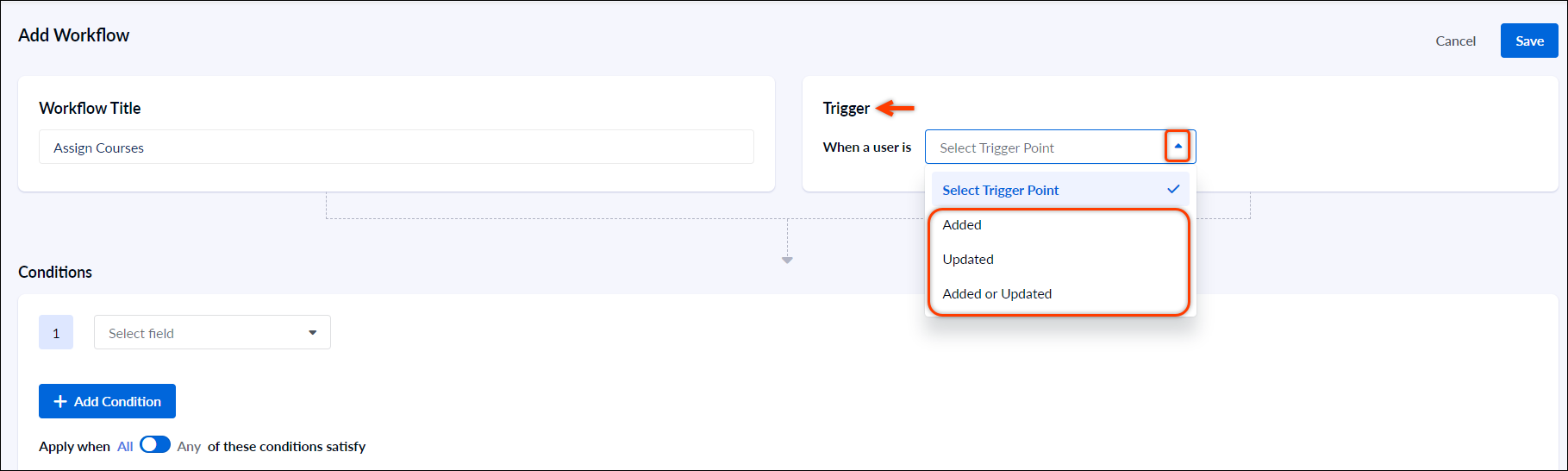
Step 4: Select the trigger point.
You can select the following trigger points:
-
When a user is “added”
-
When a user is “updated”
-
When a user is “added or updated”
Step 5: From "Conditions," select the field and the operator. You can assign courses to the users based on the date of hire, department, business unit, job title, manager, and tenure.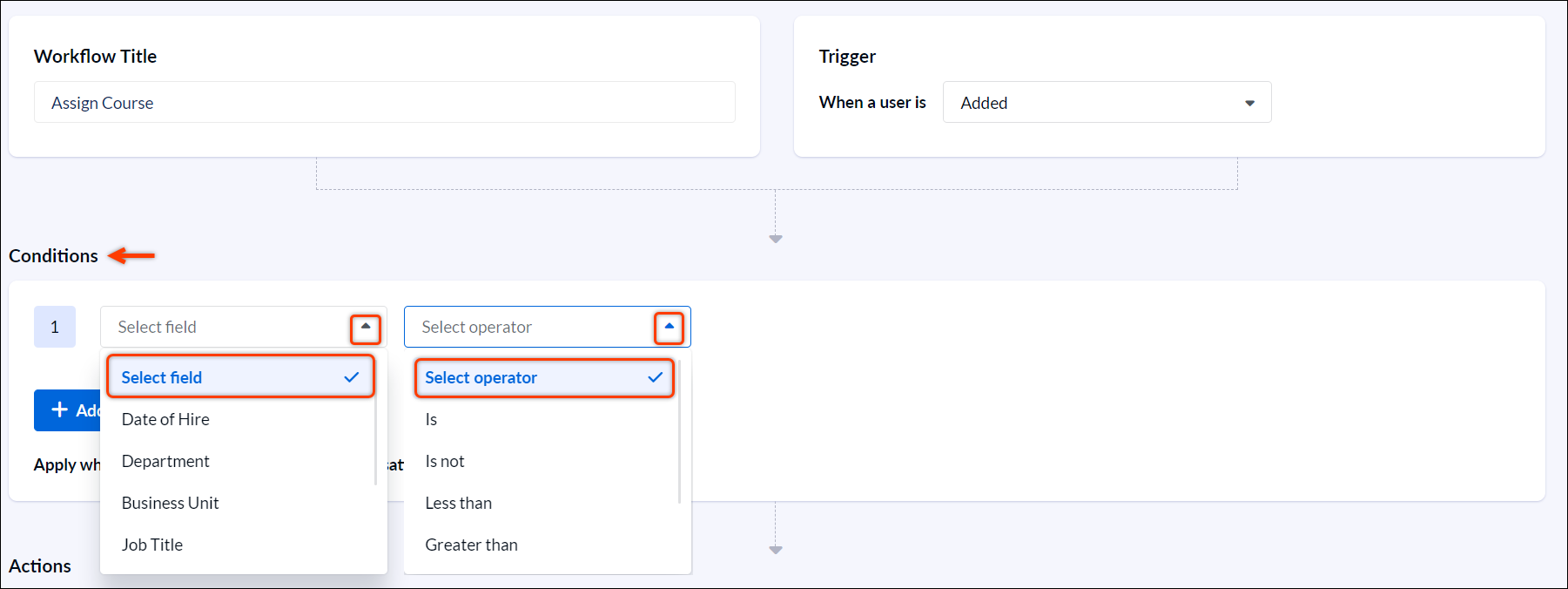
Step 6: In this scenario, select the field as “Date of Hire,” the operator as “Is,” and select the hire date.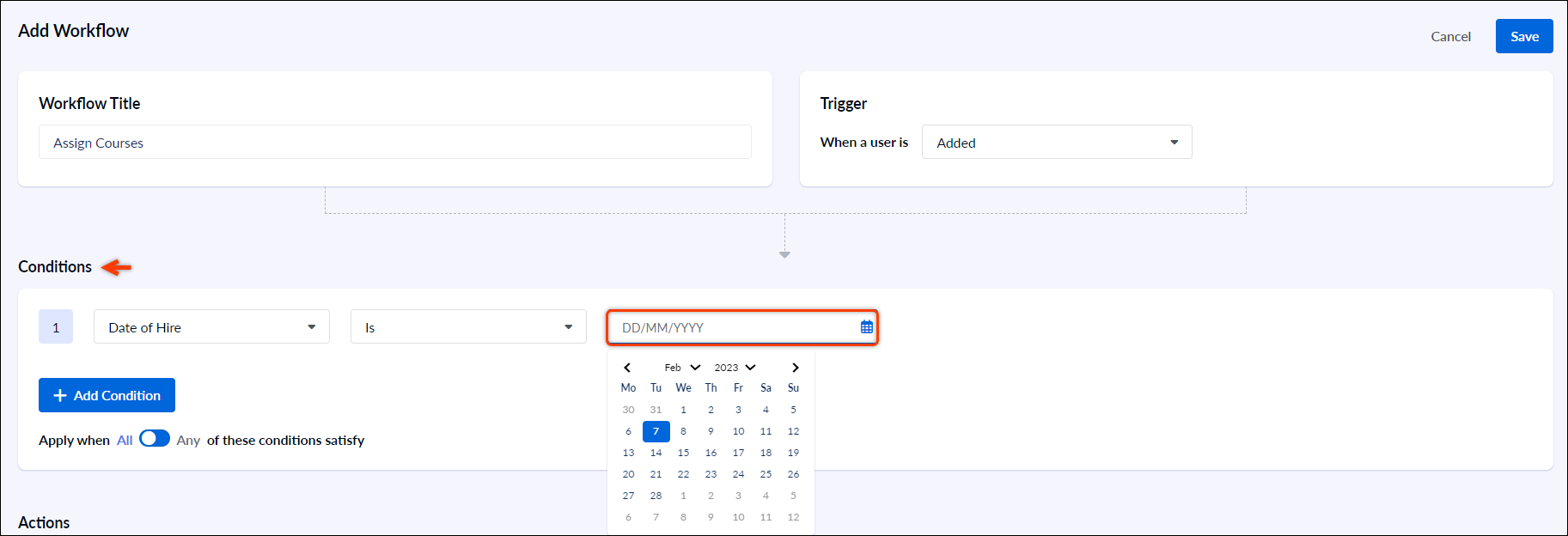
Step 7: Click +Add Condition to add multiple conditions.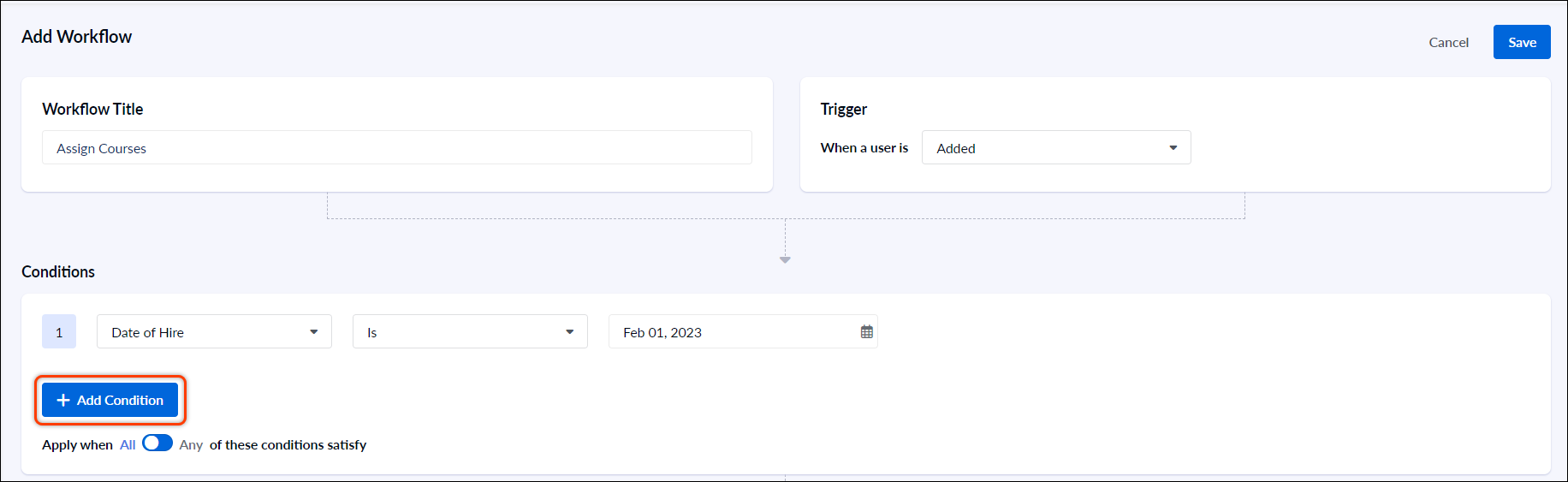
Step 8: From the “Actions” drop-down, select Assign Course.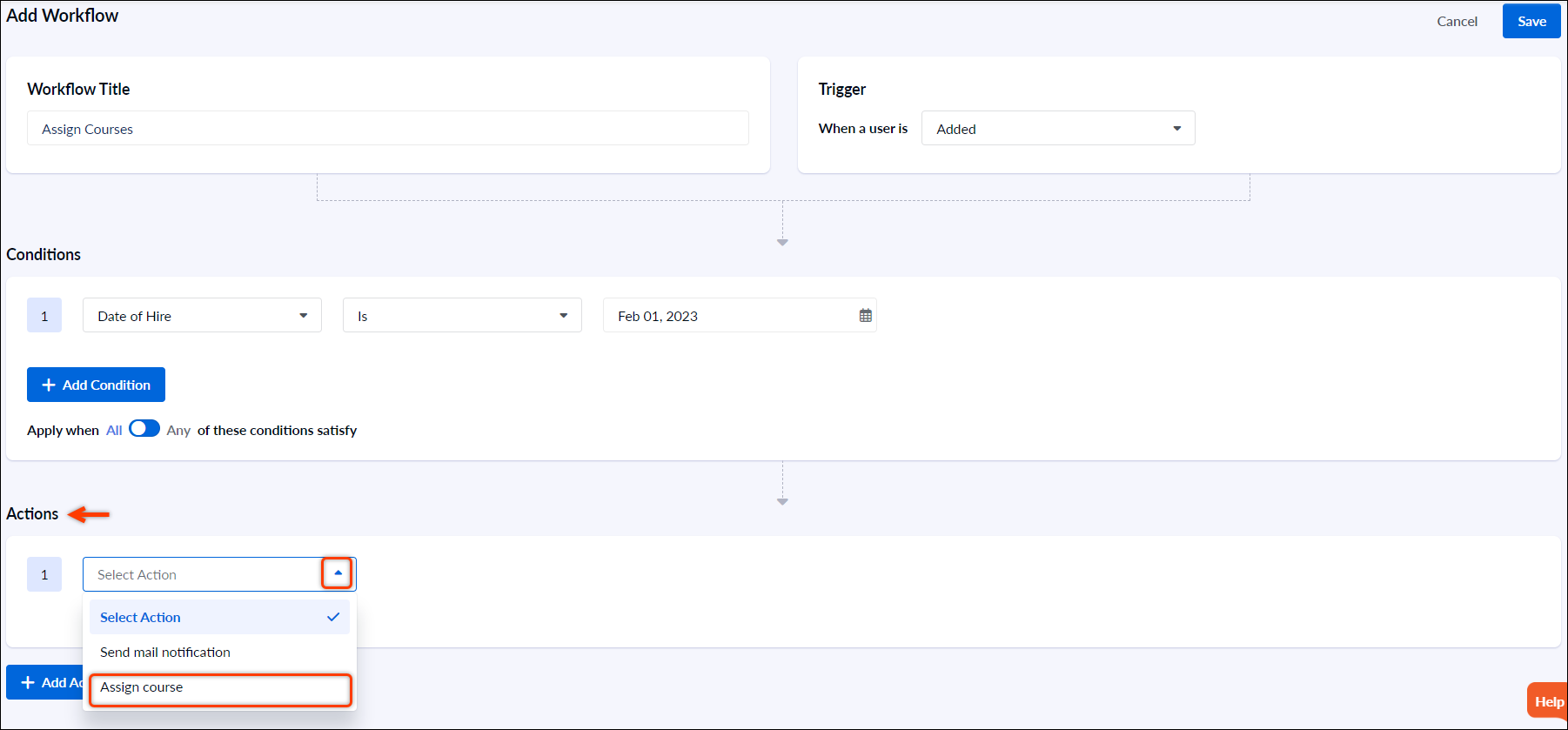
Step 9: Select the courses you want to assign and click Save.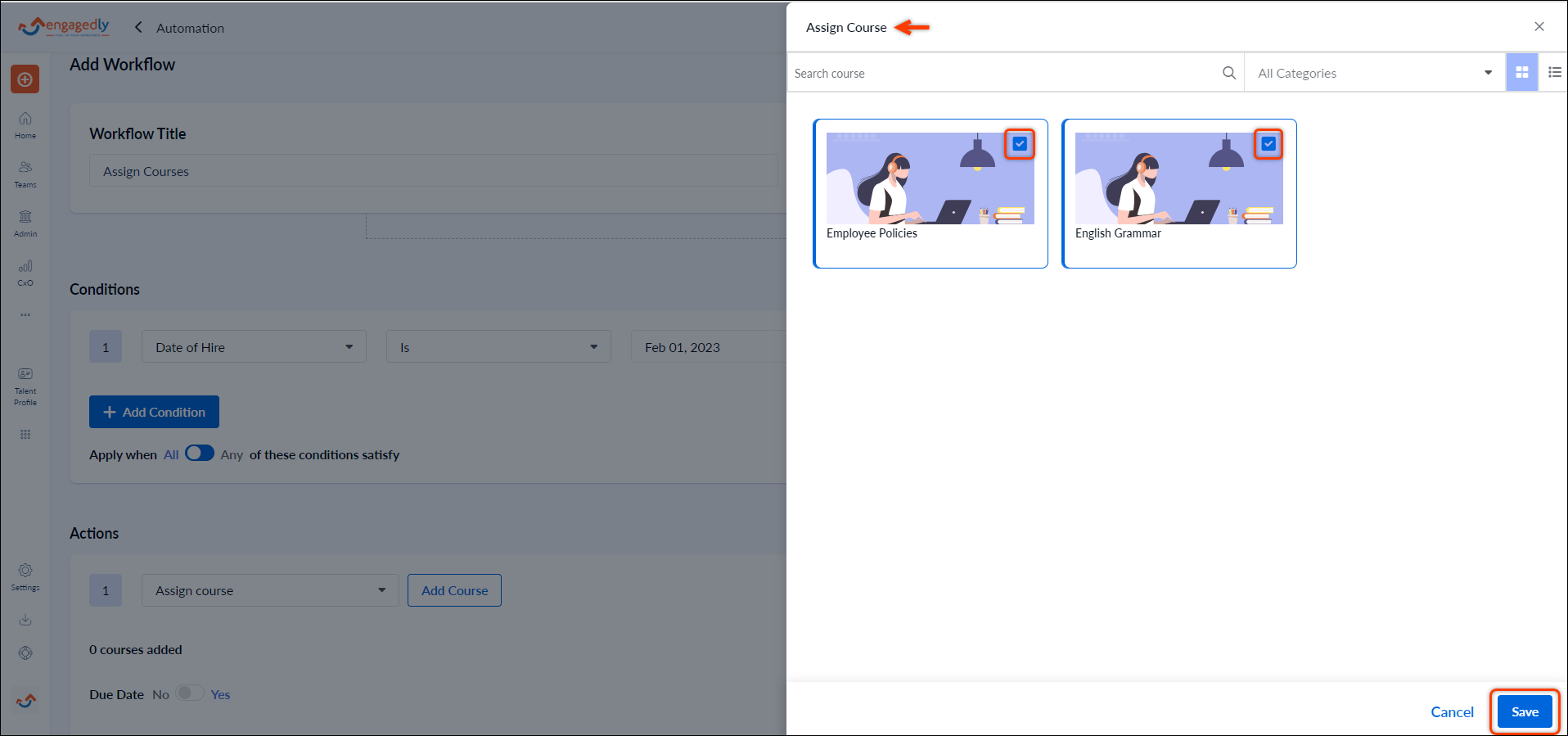
Step 10: Select the Due Date toggle button to Yes to set the due date for the course assigned.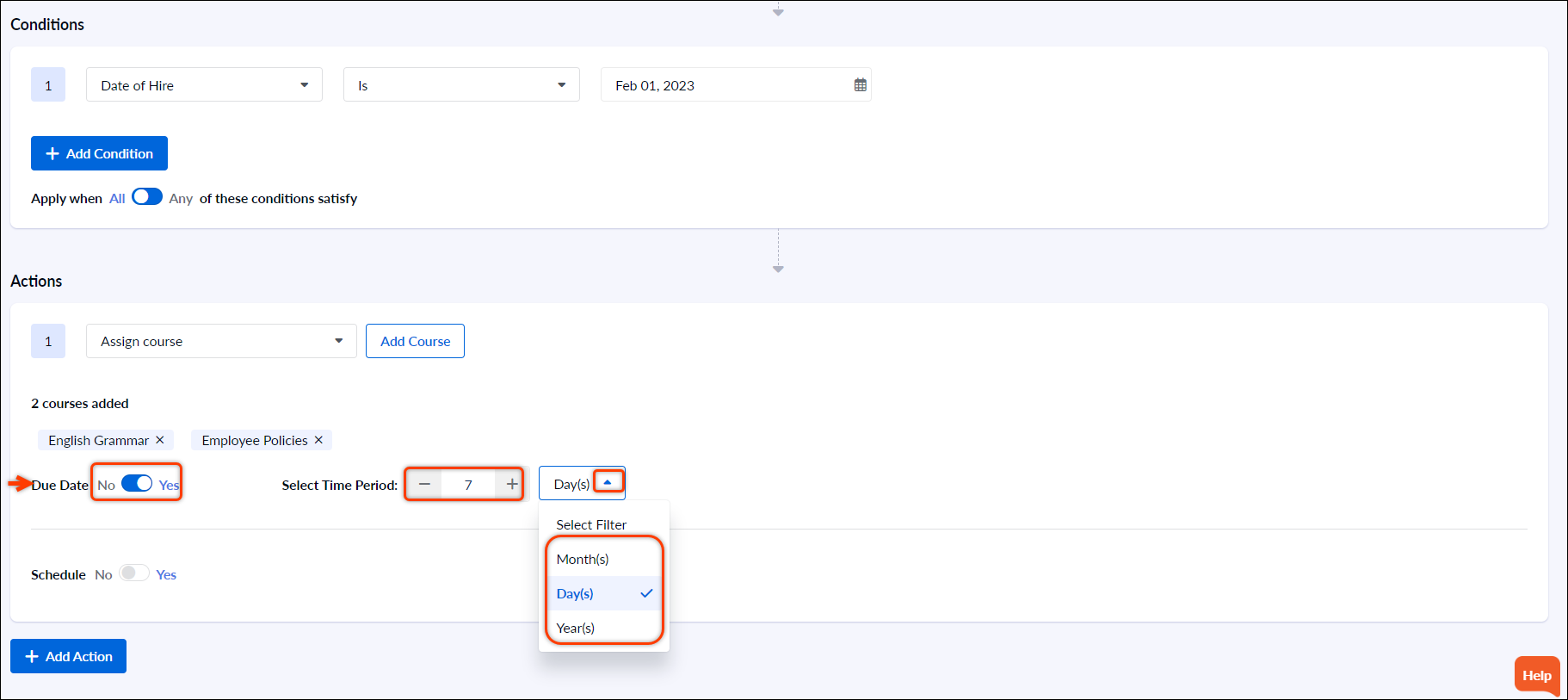
Step 11: To schedule the action for a specific time period, select the Schedule toggle button to Yes.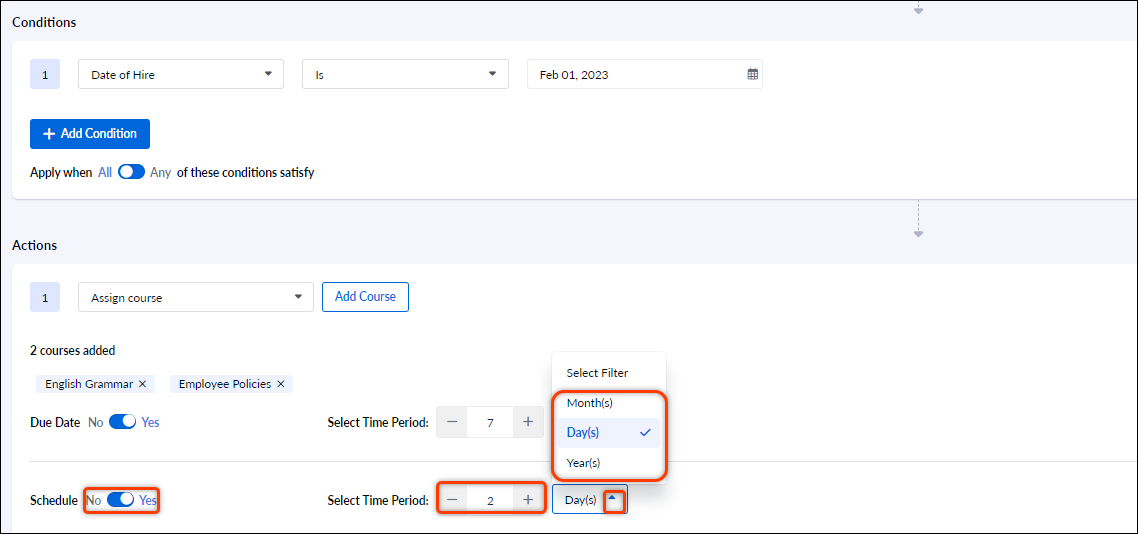
Step 12: Click Save to save the setting.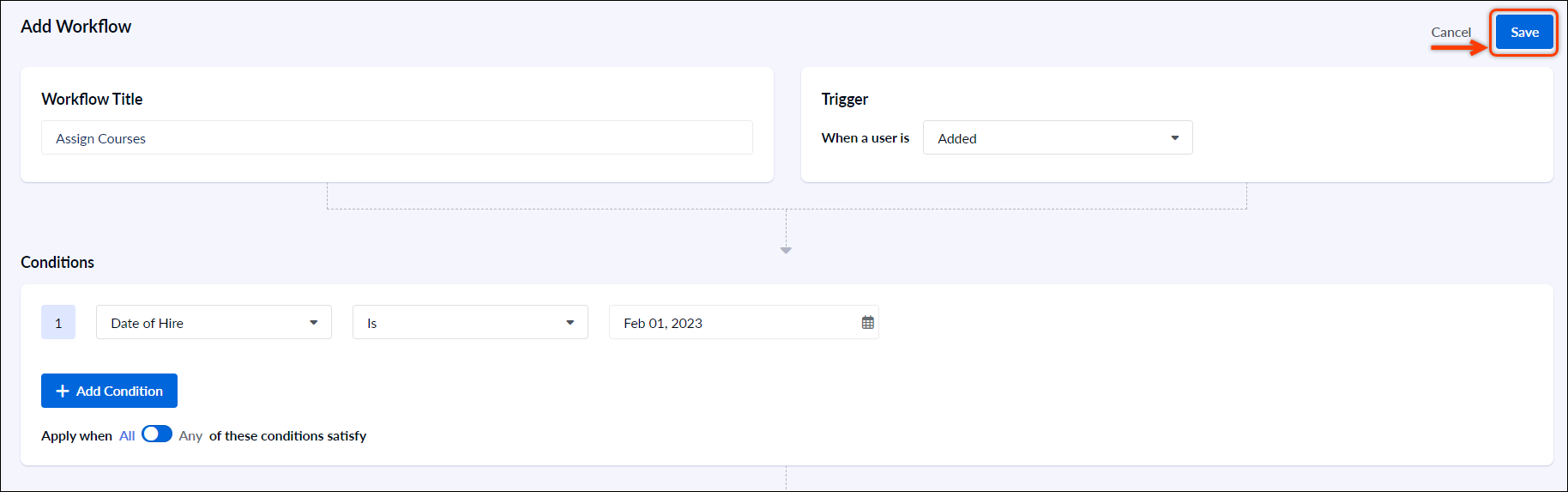
Step 13: The workflow is now created.