![Engagedly dark.png]](https://help.engagedly.com/hs-fs/hubfs/Engagedly%20dark.png?height=31&name=Engagedly%20dark.png)
Admins can view the check-in responses to monitor employee progress, identify trends, and address any issues. This helps them keep the team on track, make informed decisions, and support employee development. They can export employees' responses as a PDF file.
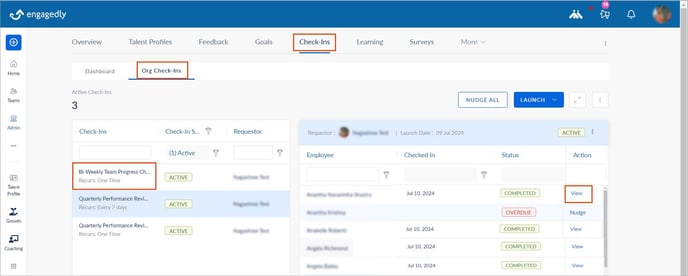
Navigate to Check-Ins > Org Check-Ins.
- Click a check-in on the left to open an expanded view on the right.
- Click View to open the completed check-in responses.
3. Click VIEW ALL RESPONSES next to a question to access others' responses to that particular question.
4. Click EXPORT AS PDF to export the check-in responses.

Check-in dashboard
Admins can view and export the list of employees who are not part of the check-ins.
Navigate to Check-Ins > Dashboard.
- Under "Members without Check-Ins", click the Right Arrow
 to view the list of employees.
 - Hover over an employee name and click Add to Check-in on the right.
- Click the Download
 icon at the top to export the list.