![Engagedly dark.png]](https://help.engagedly.com/hs-fs/hubfs/Engagedly%20dark.png?height=31&name=Engagedly%20dark.png)
Goal creators, assigners, and owners can manage goals to keep them updated and aligned with changing priorities. You can edit goal details, track progress, add key results or tasks, and make adjustments as required to ensure the goal remains clear, relevant, and achievable.
Navigate to Apps > Goals.
Perform the following actions based on your role and the goal you prefer to manage:
|
Role |
Navigation |
|
Goal owner (Individual goal) |
My Goals > My Goals tab. |
|
Goal assigner (Individual goal) |
My Goals > Assigned by Me tab. |
|
Admin (Top-level goal) |
Go to Top Level Goals. |
|
Admin (Individual goal) |
Select My Org > Select an employee. |
|
Manager (Direct report’s goal) |
Select a team > Select an employee. |
- Click a goal to open the "Goal Details" page.
The goal cards appear on the left, and the selected goal details appear on the right.
2. All fields support in-line editing. Click a field and update it as required.
Actions you can perform:
- Click the goal title, modify it, and then click the Tick
 icon to save.
 - Click Align, select the desired tab, hover over a goal, and click Align.
- Click the goal duration, measurement type, or visibility to edit them.
- Click Add Followers to include people in the goal.
📒Note: The goal creator, assigner, or owner cannot follow a goal, as they are already directly associated with it.
- Click the number of followers to view, remove, or add more followers.
- Click Add Categories, open the drop-down, select categories, and click Save.
- Click Attachments to upload relevant files.
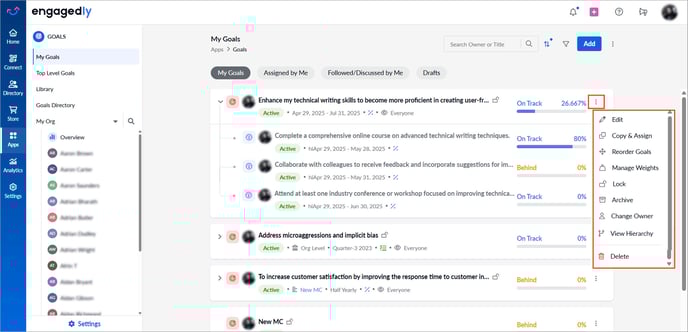
3. Click the Overflow  Menu at the top right of a goal for additional actions:
- Edit: Modify goal details, add key results or contributing goals, or cascade the goal.
-
Copy and Assign: Duplicate the goal (with or without key results) and assign it to multiple employees.
When you copy a goal, define how the copied goal relates to the parent goal:
- Align to copying goal: The copied goal is aligned under the parent goal.
- Contribute to copying goal: The copied goal is aligned and marked as a contributor, indicating their progress impacts the parent goal.
- No option selected: The copied goal is independent, without alignment or contribution to the parent goal.
- Change Owner: Assign a new goal owner or assigner.
- Reorder Goals: Change the order of key results (available when multiple key results exist).
- Manage Weights: Enable weights for key results to define how each key result contributes to the goal’s overall progress.
📒Notes:
- This option is available only when the goal has at least one key result or contributing goal.
- Weightages apply only to key results, not to goals, and they must total 100%. If weightages are not defined, the system automatically distributes them equally across all key results within the goal.
-
Add to Meeting: Add the goal to a meeting for discussion with stakeholders or team members.
📒Note: Available only if you have an active subscription to Engagedly’s Meetings module.
⚠️Warning: You cannot create meetings without integrating with Google or Microsoft Calendar. Contact our support team for calendar integration.
- Lock or Unlock: Lock the goal to restrict editing, archiving, managing weights, changing the owner, or deleting it.
Follow the same steps and select Unlock to unlock the goal at any time and make changes.
- Archive: Hides the goal from active views, making it no longer visible in your current goal list.
📒Note: Archiving a goal does not affect its progress.
- Nudge: Send a reminder to the owner or contributors.
- Request Feedback: Request feedback on a goal (available for a goal creator, owner, and assigner).
- Share Feedback: Provide feedback on a goal to the goal owner (available to others with goal visibility, but not available for your own goals).
- Public Praise: Recognize and appreciate the goal owner’s achievements in a public forum within the organization (available for others' goals).
📒Note: Available only if you have an active subscription to Engagedly’s Feedback module.
- Remove Alignment: Detach the goal from the parent goal. The goal is no longer aligned (available if the goal is aligned).
- View Hierarchy: Understand how a goal is organized with its key results, contributors, and aligned goals.
📒Note: From the “Goal Hierarchy” page, you can add a key result, add contributing goals, or cascade the goal.
- Delete: Remove the goal Permanently.
⚠️Warning: Deleting a goal may impact the progress of dependent goals if any.
Additional actions
After opening the "Goal Details" page, scroll down to add tasks, view the update history and goal activities, and initiate a discussion.
Add tasks
After creating goals, the goal creator, assigner, and owner can add tasks to their goals. Adding tasks helps you break a goal into smaller, actionable, and manageable tasks, making it easier to track progress and stay focused. After adding, manage the tasks you have created if required. Learn more in Add and manage tasks within a goal.
View update history
Goal history provides a clear record of goal progress over time, helps you reflect on challenges and achievements, and supports better decision-making during reviews or adjustments.
View goal activities
Goal activities show all updates, including goal details, added followers, key results, comments, status history, and progress. The activity log captures every action performed on a goal. It keeps you informed, builds transparency, and makes it easy to track progress over time.
Initiate a discussion
Initiating a discussion about goals helps clarify expectations, align team efforts, and encourage collaboration. It ensures everyone is on the same page and increases engagement toward achieving the goal. Learn more about Initiating a discussion on a goal.
⚠️Warning: Tagged employees can view the goal details, even if the goal visibility is restricted.