![Engagedly dark.png]](https://help.engagedly.com/hs-fs/hubfs/Engagedly%20dark.png?height=31&name=Engagedly%20dark.png)
After creating a performance review cycle, admins can manage it to adjust configurations, control visibility, archive, or restore completed cycles. Any changes you make take effect immediately.
Manage a cycle to:
- Update cycle configurations before reviews begin.
- Control who can view and manage each review cycle.
- Archive or unarchive cycles based on review progress or completion.
💡Tip: Update the cycle configurations before adding employees to the cycle for a smoother setup process.
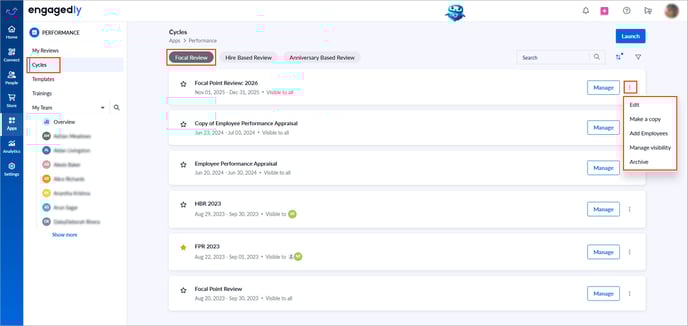
Navigate to Apps > Performance > Cycles.
Option 1: From the cycles page
- Go to the tab where your cycle is listed: Focal Review, Hire Based Review, or Anniversary Based Review.
- Click the Overflow
 Menu on the right side of a cycle to perform the following actions:
- Edit: Modify the cycle's workflow configuration.
- Make a copy: Create a duplicate and editable copy, while the original cycle remains unchanged.
- Add employees: Add employees to the selected cycle.
- Manage visibility: Share the cycle with other admins and employees who have manage permissions, allowing them to view and edit the cycle settings.
- Visible to all: Remove the visibility restriction for a cycle.
📒Notes:
- Employees with manage permissions can view and manage all cycles by default unless visibility restrictions are applied.
- The "Visible to all" option is available only when visibility restrictions are currently enabled.
- Archive: Hide inactive or completed review cycles.
📒Note: Once created, you cannot delete a performance review cycle. However, you can archive it.
Option 2: Within the cycle settings
- Click the Overflow Menu on the right side of a cycle.
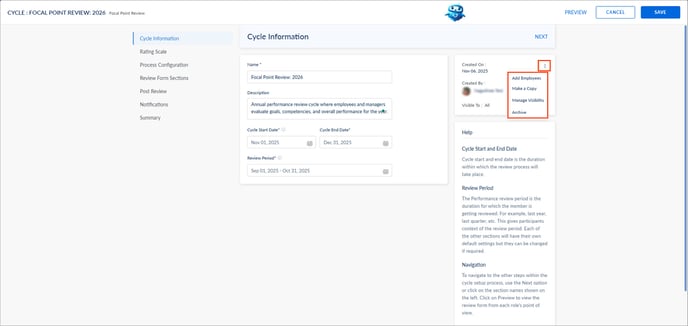
- Select Edit to modify the cycle’s configuration.
- Click the Overflow Menu at the top right and select the following options.
- Add employees: Add reviewees to the cycle. Learn more in Add employees to a performance review cycle.
- Make a copy: Create a duplicate and editable copy, while the original cycle remains unchanged.
- Manage visibility: Share the cycle with other admins and employees who have manage permissions, allowing them to view and edit the cycle settings.
- Archive: Hide inactive or completed review cycles.
Unarchive a cycle
You can restore an archived cycle when required.
Option 1: From the cycles page
- Click the Filter icon at the top right.
- Open the drop-down, select the Archived status, and click Apply.
- Click the Overflow Menu on the right side of a cycle and select Unarchive.
- Click Unarchive again to confirm.
Option 2: Within the cycle settings
- Click the Overflow Menu on the right side of a cycle.
- Select Edit to modify the cycle’s workflow configuration.
- Click the Overflow Menu at the top right and select Unarchive.
- Click UNARCHIVE again to confirm.