![Engagedly dark.png]](https://help.engagedly.com/hs-fs/hubfs/Engagedly%20dark.png?height=31&name=Engagedly%20dark.png)
Goal creators and assigners can nudge goal owners to update their goals and stay on track. Nudging encourages accountability and helps maintain progress.
- Admins can nudge employees, business unit admins, and department admins to create or update goals.
- Managers can nudge their direct reports to create or update goals.
-
There are three ways to nudge goal owners:
Option 1: From the overview page
Option 2: From the goal summary (Overview page)
Option 3: From the goal details page
📒Notes:
- Ensure that admins have enabled the notifications for your organization.
- Ensure that you have enabled your personal notification preferences for the Goals module.
|
Your personal notifications settings
|
Option 1: From the overview page
Only admins and managers can access the overview page.
Navigate to Apps > Goals.
Perform the following actions based on your role and the goal owner you prefer to nudge:
|
Role |
Navigation |
|
Admin (Individual goal) |
Select My Org > Overview. |
|
Manager (Direct report’s goal) |
Select a team > Overview. |
- In "Recommended actions", click View to view goals that are at risk, behind, or have no updates.
- Click View & Nudge.
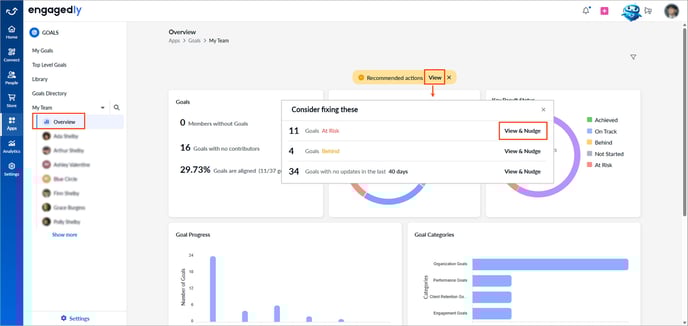
3. Select one of the following:
-
- Click Nudge all at the top right.
- Click the Bell
 icon to nudge an individual employee.
4. Edit the message if required, and click Nudge.
Option 2: From the goal summary (Overview page)
Navigate to Apps > Goals.
- On the "Overview" page, click the Right
 Arrow in the "Goals" field to open detailed goal information.
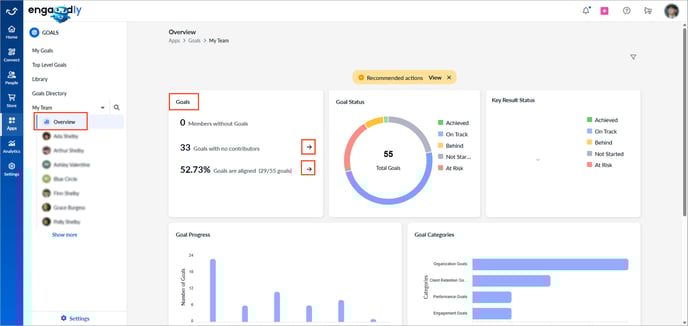
2. Select one of the following:
-
- Click Nudge All at the top right.
- Click Nudge next to an individual employee.
📒Note: When nudging an employee, you can also choose to nudge their manager.
3. Edit the message if required, and click Nudge.
Option 3: From the goal details page
Navigate to Apps > Goals.
Perform the following actions based on your role and the goal owners you prefer to nudge:
|
Role |
Navigation |
|
Admin (Individual goal) |
Select My Org > Select an employee. |
|
Manager (Direct report’s goal) |
Select a team > Select an employee. |
|
Goal creator or assigner (Individual goal) |
My Goals > Assigned by Me tab. |
|
Admin (Top-level goal) |
Go to Top Level Goals. |
- Click a goal to open the "Goal Details" page.
The goal card appears on the left, and the selected goal details appear on the right.
2. Click the Overflow  Menu at the top right of a goal and select Nudge.
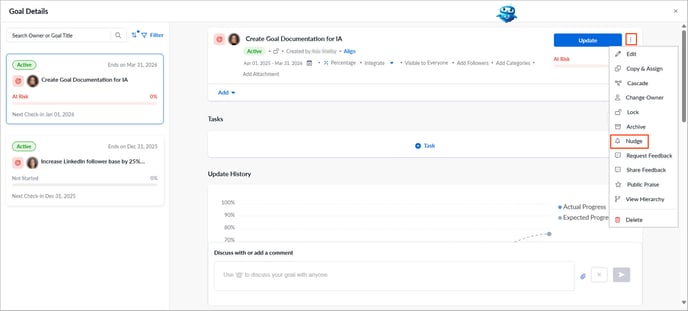
3. Edit the message if required, and click Nudge.