![Engagedly dark.png]](https://help.engagedly.com/hs-fs/hubfs/Engagedly%20dark.png?height=31&name=Engagedly%20dark.png)
Praise allows you to publicly recognize goal owners for their efforts and contributions within the organization’s social forum. It acknowledges their hard work, boosts morale, develops motivation, and promotes a positive work environment.
📒Note: If you have an active subscription to Engagedly’s Feedback module, you can praise.
Goal creators and assigners can praise the goal owners whenever they complete a goal or demonstrate outstanding performance toward achieving one.
Admins can praise employees, business unit admins, and department admins who are goal owners at any time.
Managers can praise the goal owners who are their direct reports as part of regular feedback or after goal achievements.
📒Note: Goal owners cannot use "Public Praise" for their own goals.
Option 1: From the goal details page
Navigate to Apps > Goals.
Perform the following actions based on your role and the goal owners you prefer to praise:
|
Role |
Navigation |
|
Goal creator or assigner (Individual goal) |
My Goals > Assigned by Me tab. |
|
Admin (Top-level goal) |
Go to Top Level Goals. |
- Click a goal to open the "Goal Details" page.
The goal card appears on the left, and the selected goal details appear on the right.
2. Click the Overflow  Menu at the top right of a goal and select Public Praise.
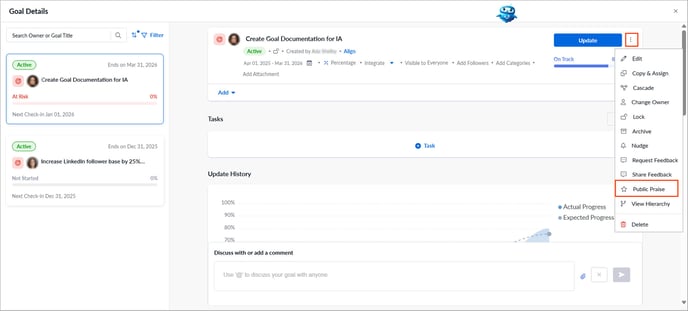
3. Enter the praise message.
4. (Optional) Enter relevant tags to categorize your praise.
5. (Optional) Attach images from the "Picture Library" or upload other images or documents from "My Computer".
6. Click POST to publish the praise.
Option 2: Use Marissa AI
You can use Marissa AI to generate praise messages for employees. When you enable Marissa AI while creating praise, it uses the context of the message you provide to generate a refined and meaningful praise.
After step 3, perform the following actions:
4. Click the Overflow  Menu at the top right and select Enable Marissa.
5. Enter the reason for recognizing employees’ achievements and select the praise style.
6. Click GENERATE.
If you are not satisfied with the suggestions, regenerate them.
Option 3: By selecting an employee
Perform the following actions based on your role and the goal owners you prefer to praise:
|
Role |
Navigation |
|
Admin (Individual goal) |
Select My Org > Select an employee. |
|
Manager (Direct report’s goal) |
Select a team > Select an employee. |
- Click a goal.
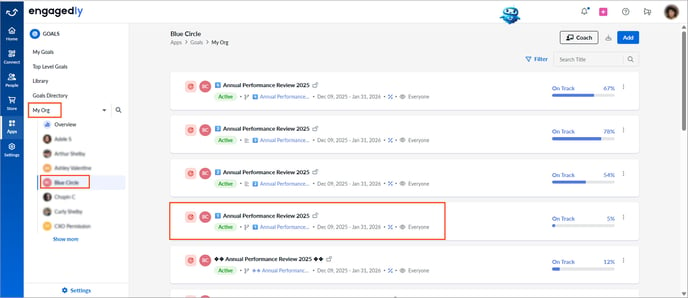
2. Click the Overflow Menu at the top right of a goal and select Public Praise.
3. Follow the same procedure from step 4 as required.