![Engagedly dark.png]](https://help.engagedly.com/hs-fs/hubfs/Engagedly%20dark.png?height=31&name=Engagedly%20dark.png)
Goal creators, assigners, and owners can update:
- Goals (if they do not have key results or contributing goals)
- Key results within a parent goal
- Contributing goals within a parent goal
Regular updates help track progress and maintain alignment across the organization. This keeps everyone informed, supports collaboration by enabling strategy adjustments, and ensures goals stay relevant as priorities change.
📒Note: Only admins can update top-level goals and their key results.
Navigate to Apps > Goals.
Perform the following actions based on your role and the goal you prefer to update:
|
Role |
Navigation |
|
Goal owner (Individual goal) |
My Goals > My Goals tab. |
|
Goal assigner (Individual goal) |
My Goals > Assigned by Me tab. |
|
Admin (Top-level goal) |
Go to Top Level Goals. |
|
Admin (Individual goal) |
Select My Org > Select an employee. |
|
Manager (Direct report’s goal) |
Select a team > Select an employee. |
2. Hover over a key result or a contributing goal, click Update, enter the value, and click Save.
If there are no contributing goals or key results, hover over a goal, click Update, enter the value, and click Save.
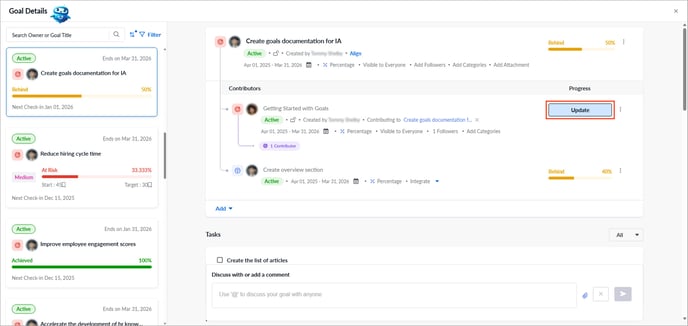
Additionally, click a goal to open the "Goal Details" page.
The goal list appears on the left, and the selected goal details appear on the right.
Click Update at the top right, enter the value, and click Save.
📒Notes:
- If the parent goal has a percentage as its measurement type, you can add weights to its key results. However, if the parent goal has quantity or milestone as its measurement type, the manage weights feature is not available.
- If the measurement type is percentage, you can automatically update the goal progress from Jira.
- If the measurement type is quantity, you can automatically update the goal progress from Salesforce or Google Sheets.