![Engagedly dark.png]](https://help.engagedly.com/hs-fs/hubfs/Engagedly%20dark.png?height=31&name=Engagedly%20dark.png)
The goals overview page provides a visual summary of your organization’s goal-related activity. It includes graphical representations of metrics such as goal ownership, status, alignment, category, progress, and check-in health.
It offers a quick, actionable snapshot of goal health across the organization or your team.
- Admins can view analytics to track and measure organization-wide goal completion rates.
- Managers can view analytics to track and measure their team's goal completion rates.
- Employees cannot access the overview page.
The overview allows you to monitor goal progress, team alignment, and employee engagement during performance review cycles, weekly or monthly check-ins, meetings, or when preparing progress reports.
Navigate to Apps > Goals > My Org.
If you are a manager, open the drop-down and select a team.
- Click Overview from the left pane.
- At the top right, click the Filter
 icon to filter goals data by its status.
 - At the top right, click the Overflow
 Menu and select the option as required:
- Goals Import: Import goals in bulk using the template. Learn more in Import goals.
- Import History: View import history with details such as file name, import type, uploaded by, timestamps, record counts, and status. Learn more in Import history.
📒Note: If managers do not have permission to import goals, they do not view the import options.
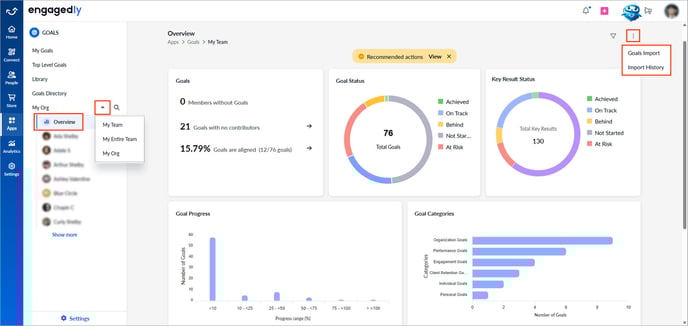
The overview page displays:
- Goals: Display the number of employees without goals, goals with no contributions, and the percentage of aligned goals.
Click the Right Arrow to view detailed goal data.
- Goal status: View the number of goals distribution across five statuses: active, on track, behind, not started, and at risk.
- Key result status: Track the progress of key results tied to goals, indicating whether they are achieved, on track, or behind.
- Goal progress: View goal progress as a percentage.
- Goal categories: Analyze goals based on their categories.
- Progress update health: Track the number of check-ins over the past six months to identify which employees (if you are an admin) or team members (if you are a manager) regularly check in.
Additional actions
Hover over any graph to view goal data.
Click any graph or chart to open the detailed goal information.
At the top right,
- Click Nudge to remind goal owners to update their goals.
- Click Export to download the report.
If your team members goals' are at risk, behind, or have no updates for a long time, you get "Recommended actions" at the top.
Click View to view details and send a nudge.