![Engagedly dark.png]](https://help.engagedly.com/hs-fs/hubfs/Engagedly%20dark.png?height=31&name=Engagedly%20dark.png)
After a search is entered, talent discovery analyzes the query, identifies keywords, and matches them with employee data such as roles, skills, competencies, departments, business units, and locations. The system then scores and ranks employees based on relevance and applied search criteria. Results appear in a sorted list so admins can quickly identify suitable employees. You can also narrow your search using criteria such as skill categories, skill subcategories, skill expertise levels, competency levels, performance ratings, 9-box categories, business units, locations, and user fields.
Navigate to Apps > Talent Mobility > Talent Discovery.
- Enter your search query in the search bar and click the Search icon.
- (Optional) Click the Sort icon to apply search criteria and refine your results.
- Review the results displayed in a smart‑sorted list.
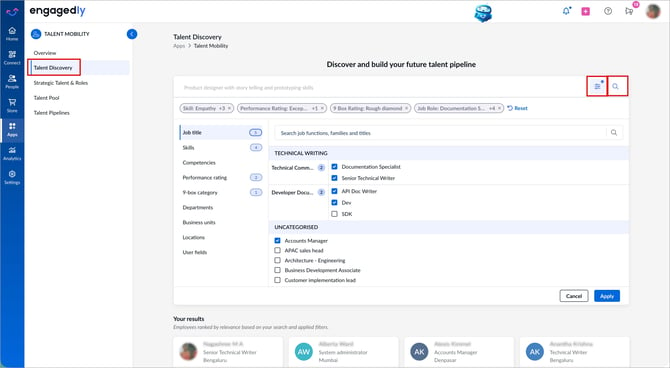
4. Click the employee’s name on the card to open their growth profile.
What you see in results
Each search result appears as a talent card. A card displays the employee's name, job title, location, number of matched skills (if skills are used in the search), and identified successors. Results are smartly sorted so the most relevant employees appear first.
💡Tips:
- Stronger skill proficiency ranks higher in skill-based searches.
- Better role fit ranks higher in role-based searches.
- Use specific keywords and click the Sort icon to combine search criteria for more accurate results.
Additional actions
From the search results, you can act directly without leaving the screen. Options include:
- Add employee to a pipeline
- Add employee to a talent pool
- Remove employee from a pool
- View employee growth profile
- Mark employee as successor
- Mark employee as critical
- Schedule a meeting with the employee
- Assign learnings to employees
- Add IDPs to employees
To learn about the actions available on a talent card, refer to What you can do after discovering the talent.