![Engagedly dark.png]](https://help.engagedly.com/hs-fs/hubfs/Engagedly%20dark.png?height=31&name=Engagedly%20dark.png)
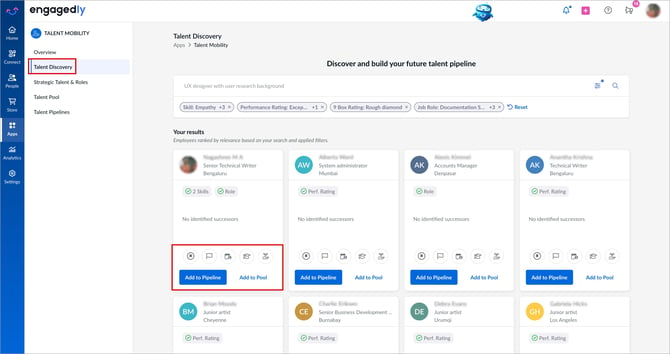
After the search results appear, each employee card displays quick actions. To learn more about discovering talent using search criteria, refer to Discover talent in your organization.
Navigate to Apps > Talent Mobility > Talent Discovery.
Perform the required actions for an employee:
Mark as successor
- On the employee card, click the Bookmark
 icon.
icon. - Select whether you are assigning an employee as a successor for a Talent or a Role.
- Search for and select the relevant talent or role.
- Click Mark as Successor to confirm.
Mark critical
- On the employee card, click the Grey Flag
 icon to mark the employee critical.
 - (Optional) Enter remarks to explain why the role is critical.
- Click Mark Critical to confirm.
Unmark critical
- On the employee card, click the Green Flag
 icon to mark the employee critical.
 - Click Unmark Critical to confirm.
Schedule a meeting
- On the employee card, click the Schedule
 icon to schedule a meeting with the employee.
 - Enter the meeting details and click Save. Learn more in Create a meeting.
Assign learnings
- On the employee card, click the Graduation Cap
 icon to assign learnings.
 - Search for courses or learning paths.
- Hover over the courses and click Assign.
Add IDPs
- On the employee card, click the Growth
 icon to add IDP to the employee.
 - Enter the IDP details and click Save. Learn more in Create and manage IDPs.
Add employees to a pipeline
- On the employee card, click Add to Pipeline to assign an employee to a pipeline.
- Open the drop-down, select the existing pipeline, and click Add to Pipeline.
Alternatively, click Go to Pipeline and click Create Pipeline to create a new pipeline.
Add employees to the pool
- On the employee card, click Add to Pool to add an employee to the talent pool.
- (Optional) Enter remarks to explain why the employee is added to the pool.
- Click Add to Pool to confirm.
Remove employees from the pool
It is available after adding to a pool.
- On the employee card, click Remove from Pool if the employee is already in the pool.
- Click Remove to confirm.
To learn more about the growth profile, refer to Use the growth profile to make better decisions.