![Engagedly dark.png]](https://help.engagedly.com/hs-fs/hubfs/Engagedly%20dark.png?height=31&name=Engagedly%20dark.png)
After creating a survey, authors must add sections and questions to structure the content and collect meaningful responses.
You can share a survey only after adding questions.
⚠️Warning: Adding, modifying, or importing questions after sharing the survey may affect the collected responses. Respondents who have already submitted the survey cannot answer questions added later.
Add questions
You can include hyperlinks in the survey description or in a question to direct respondents to a website for additional information, such as event details or training materials.
After creating a survey, you are redirected to the “Questionnaire” tab by default, where you can add sections and questions. You can also add questions at any time.
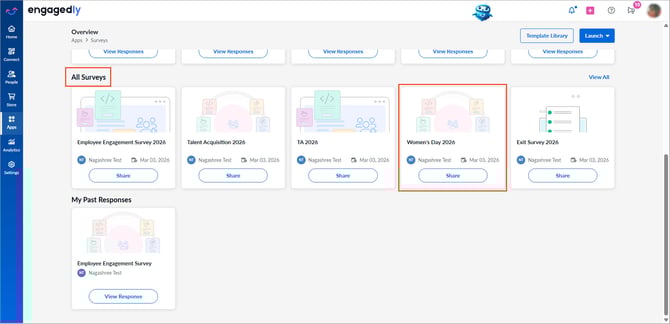
Navigate to Apps > Surveys.
- Scroll down to All Surveys.
- Open the required survey.
Methods to add questions
Option 1: Add questions manually
- In the "Questionnaire” tab, open the ADD QUESTION drop-down under a section.
- Select a question type based on the survey type.
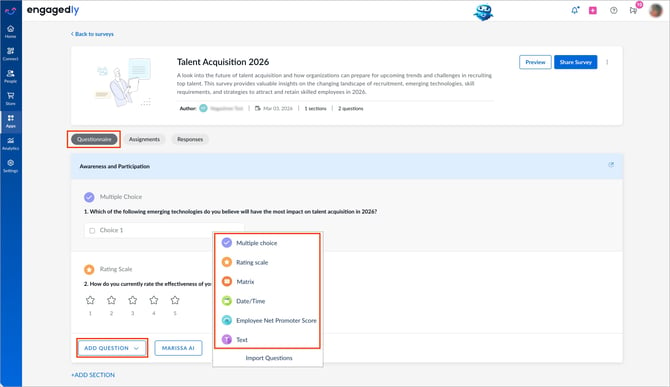
📒Note: This screenshot shows the general survey question types.
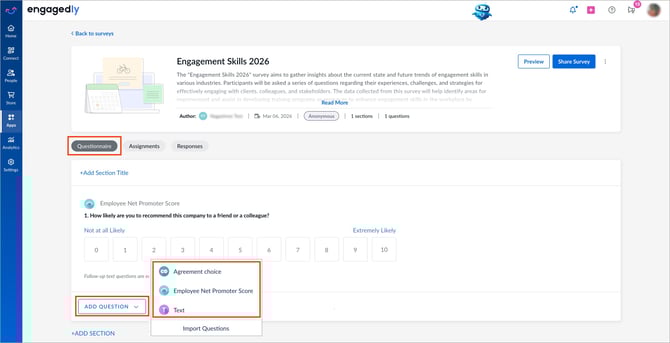
📒Note: This screenshot shows the engagement survey question types.
3. Enter the question and description, and click SAVE.
Option 2: Use Marissa AI
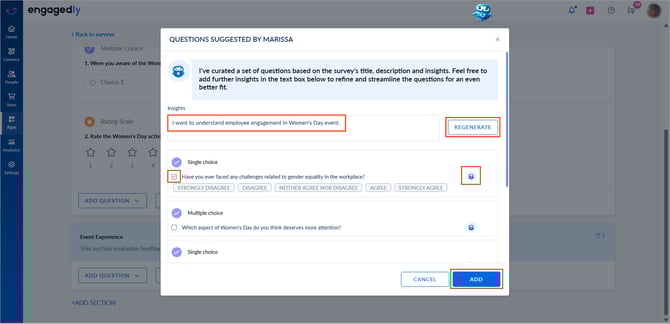
Based on the survey title, Marissa generates questions.
- Click MARISSA AI under a section.
- Add survey insights to refine the questions and click REGENERATE.
- Click the Marissa
-4.png?width=18&height=20&name=Marissa%205@2x%20(2)-4.png) icon next to a question to rephrase it.
icon next to a question to rephrase it. - Select the required questions and click ADD.
Question settings
Settings vary depending on the survey type.
Settings for general surveys
Based on your requirements and the question type, configure the following settings:
- Add multiple sections with multiple questions in each section.
- Allow single or multiple selections in the “Multiple Choice” question type.
- Enter the number of choices allowed for “Multiple Selection” questions.
- Enter answer choices or select the scale type for “Multiple Choice” and “Matrix” question types.
- Enable “Other” Choice for “Single Selection” and “Multiple Selection” question types.
- Edit, delete, or rearrange choices in “Single Selection” and “Multiple Selection” question types.
- Enable a Follow-up Text Question in “Single Selection”, “Rating”, and “eNPS” question types, and enter a question for all or selected choices.
- Enable Randomize choices for the “Multiple Choice” question type to display choices in a random order for each respondent.
- Enable Randomize Rows in the “Multiple choice” and ”Matrix” question types.
- Select Date & Time or Date only in the “Date & Time” question type.
- Enable the Max Character Limit and enter a value for the “Text” question type.
- Add values in rows and columns, and enable Randomize Rows in the “Matrix” question type.
- Enable Mandatory to make the question required (applicable to all question types).
For more information about question types, refer to the Glossary in Surveys.
Settings for engagement surveys
Based on your requirements and the question type, configure the following settings:
- Add multiple sections with multiple questions in each section.
- “Agreement Choice” questions are mandatory. Enable Mark this question as driver to include the question in the engagement analysis.
- Enable a Follow-up Text Question for “Agreement Choice” and eNPS” question types, and enter a question for all or selected choices.
- Enable Mandatory to make the question required for “eNPS” and Text question types.
- Enable the Max Character Limit and enter a value for the “Text” question type.
📒Note: “Agreement Choice” questions are mandatory. Marking them as drivers ensures the question is considered in the calculation of the Engagement Index (EI). For more information, refer to the Engagement index.
Manage questions
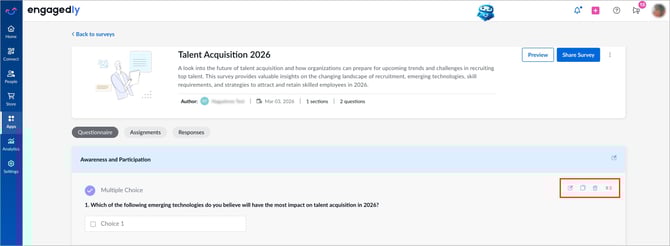
Hover over a question and do one of the following actions:
- Click the Edit
 icon to update the question, description, or other settings.
 - Click the Copy
 icon to duplicate the question with the same configuration. Edit it if required.
 - Click the Delete
 icon to remove the question.
 - Drag the Six Dot
 icon to reorder questions.
ℹ️Additional information:
- You cannot add, edit, reorder, or remove options in a question after sharing the survey.
- After sharing the survey, you cannot:
- Delete sections
- Delete questions
- Change the question type
- You can only hide questions, which may affect the collected responses.
After adding questions, you can
- Push the survey to the template library to make it available for other admins and survey managers.
- Share the survey with employees to collect their responses.
You can also import questions into the survey instead of adding them manually or using Marissa AI. For more information, refer to Import questions to a survey.