![Engagedly dark.png]](https://help.engagedly.com/hs-fs/hubfs/Engagedly%20dark.png?height=31&name=Engagedly%20dark.png)
The Engagedly homepage is your central dashboard after logging in. The Engagedly homepage is your central dashboard after logging in. From here, you can access your profile, points, badges, key navigation options, and the profile menu, where you can manage your account settings, preferences, integrations, password, and theme. an overview of the homepage layout and navigation, refer to Overview of the Engagedly homepage.
Profile information
- Log in to Engagedly.
-
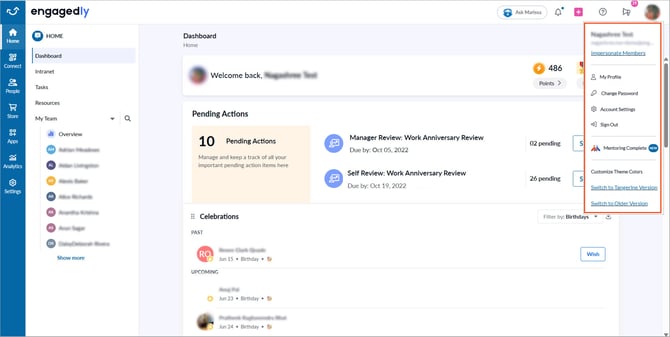
Click your profile picture at the top right to access the following options:
- Impersonate Members: Assume the role of another user to experience the platform from their perspective, for administrative purposes.
📒Note: Employees with the "Manage impersonation" permission can also impersonate other employees.
- My Profile: View your profile details, including:
-
- Personal and work profile information
- Uploaded documents and certificates, if any
For more information about managing certificates, refer to Upload and manage certificates.
-
-
-
- Your data across Engagedly apps, such as Goals, Performance, 360 Feedback, Learning, Feedback, and Engagement Survey.
-
📒Notes:
- You can view these apps only if you have an active subscription.
- Editing profile details may be restricted by your admin.
- Change Password: Update your current password.
- Account Settings: Includes multiple tabs:
- Preferences: Personalize your experience:
- Select your interface language.
- Select a default landing page for login.
- Set your time zone for an accurate date or time activity.
- Enable the setting to choose whether your work anniversary and birthday appear on the organization’s feed wall.
- Manage notifications for Engagedly apps as required and save the changes.
- Integrations: Connect external applications with Engagedly, such as Slack, Jira, Google Sheets, Salesforce, Google Calendar, and Microsoft Calendar.
- Preferences: Personalize your experience:
📒Note: Available only once your admin has set up the integration.
-
- Change Password: Update your current password.
- Sign Out: Log out of the platform.
- Mentoring Complete: Access Engagedly’s Mentoring Complete product directly from the platform. For setup instructions, refer to Integrate Mentoring Complete with Engagedly.
📒Note: Mentoring Complete is available only if it is enabled for your organization. Employees can access it only after admins create a mentoring program and add them as participants.
- Customize Theme Colors: Apply your organization's brand colors and logo for a consistent look and feel across all employee accounts.
Choose a background color or pattern from the available options, then preview and apply your selection.
- Switch to Tangerine Version: Switch to the previous version of Engagedly.
- Switch to Older Version: Switch to the Pre-Tangerine version of Engagedly.
📒Note: Only admins can access ”Customize Theme Colors”.
For more information about homepage, refer to the Explore the Engagedly homepage features.