![Engagedly dark.png]](https://help.engagedly.com/hs-fs/hubfs/Engagedly%20dark.png?height=31&name=Engagedly%20dark.png)
Key results are measurable outcomes that define the success of a goal by breaking it down into specific and actionable parts. They provide clear indicators of progress and success, allowing teams to monitor performance and make adjustments as required.
Goal creators, assigners, and owners can add and manage key results within their respective goals. However, only admins can add key results to top-level goals and manage their associated metrics.
Adding key results enables you to track and measure progress more effectively using measurement logics, and assign accountability for different parts of a goal, ensuring a more structured and outcome-driven approach.
📒Note: You cannot cascade a goal that has key results. When cascading a goal, the system only includes the main goal. Key results are not included in the cascading process.
After creating a goal, you are redirected to the "Goal Details" page, where you have a detailed view of the goal, including:
- Add and manage key results within the parent goal.
- Add and manage contributing goals within the parent goal.
However, you can add the key results at any time.
📒Note: You can copy and assign a goal and its key results to multiple employees. Each employee receives an individual copy of the parent goal that they can manage independently. Learn more in Manage a goal.
Navigate to Apps > Goals.
Perform the following actions based on your role and the goal you prefer to add a key result:
|
Role |
Navigation |
|
Goal owner (Individual goal) |
My Goals > My Goals tab. |
|
Goal assigner (Individual goal) |
My Goals > Assigned by Me tab. |
|
Admin (Top-level goal) |
Go to Top Level Goals. |
|
Admin (Individual goal) |
Select My Org > Select an employee. |
|
Manager (Direct report’s goal) |
Select a team > Select an employee. |
📒Note: Ensure that the goal and its key result use the same measurement type to enable automatic progress updates. If they use different measurement types, the goal progress would not update automatically.
Add a key result
- Click a goal to open the "Goal Details" page.
The goal cards appear on the left, and the selected goal details appear on the right.
2. Click Add, select Key Result, or select Contributing Goal.
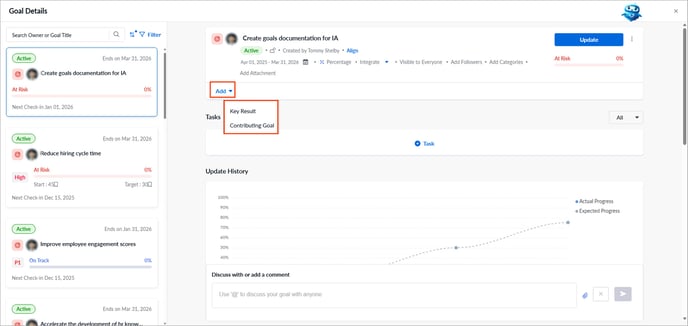
4. Enter the title and click Add Description to include relevant information.
By default, the key result is assigned to you.
5. Search and select an employee from the drop-down.
6. Set the start and end dates.
7. Select the measurement type from the drop-down.
8. Enable the Automatically Update Goal Progress from a data source and select a source.
📒Note: Ensure you are integrated with Jira, Salesforce, or Google Sheets, where key results data and status are maintained.
9. Click Save.
📒Note: If you are adding a contributing goal, select the goal categories and set a reminder.
Manage a key result
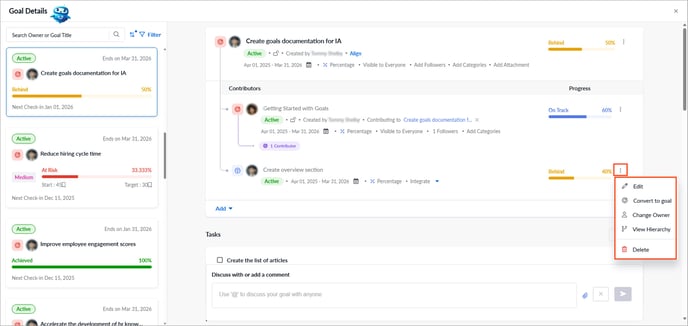
- Click the Overflow
 Menu on the right side of a key result for additional actions:
-
- Edit: Modify key result details.
- Convert to goal: Convert a key result into an individual goal.
- Public praise: Recognize and appreciate the goal owner’s achievements in a public forum within the organization (available for others' goals).
- Change owner: Assign a new owner to the key result.
- View hierarchy: Understand how a goal is organized with its key results, contributors, and aligned goals.
- Delete: Remove the key result permanently.
When converting a key result into a goal, select Cascade at the bottom right.
If saved, you are redirected to the "Cascade Goal" page, where you can immediately assign the goal to employees. Learn more in Cascade a goal.
📒Notes:
- The goal period adjusts to align with the parents’ goal cycle. In the next step, you can modify the dates by selecting any active cycle.
- You cannot cascade a key result. Convert it into a goal and then cascade the new goal.
- If you are managing a contributing goal, the overflow menu shows the same additional actions as the parent goal.
After converting a key result into a goal, you can manage it by aligning it as a contributor to the parent goal or by removing its alignment. Learn more about aligning an individual goal.