![Engagedly dark.png]](https://help.engagedly.com/hs-fs/hubfs/Engagedly%20dark.png?height=31&name=Engagedly%20dark.png)
Employees, managers, and admins can schedule one-on-one meetings with anyone in the organization. They facilitate focused, private discussions between two participants, ensuring better engagement and personalized discussions. They are useful for performance reviews, mentorship, coaching, and confidential discussions, helping employees and managers communicate effectively.
Navigate to Apps > Meetings.
If you are scheduling meetings for the first time:
- Click Schedule for one-on-one meetings.
- Click Create for team meetings.
- Click Import for importing existing meetings from your calendar.
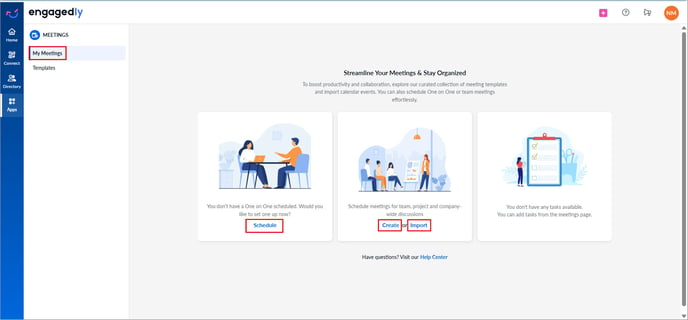
📒Note: This page appears only when no meetings are scheduled.
Scheduled meetings appear on the “My Meetings” page.
If you already have meetings scheduled, follow the steps to schedule an additional meeting if required.
Create one-on-one meeting
You must create a one-on-one meeting with a participant before scheduling it.
- On the “My Meetings” page, click Schedule at the top right and select One On One.
- Search for and select a participant, then click Save.
The one-on-one meeting is created but not scheduled yet.
Manage one-on-one meeting
After saving a one-on-one meeting, delete it if required.
Hover over the one-on-one meeting, click the Overflow  Menu on the right, and click Delete One on One.
Prerequisites
Before scheduling meetings in Engagedly for the first time, it is recommended to connect your Google or Microsoft account to sync meetings with your calendar. This integration ensures that all scheduled meetings are easily accessible within the platform, helping you manage your time efficiently.
Contact our support team for calendar integration. After integration, perform the following steps:
- Click Schedule at the top right and select Import from calendar.
📒Note: If you have already created a meeting, perform this step. If you are scheduling for the first time, click Import.
2. Click the “Select Account” drop-down and select an account.
3. Click Sign in with Google (for Google Calendar users).
4. Select an account, click Continue, and click Allow to authenticate your account with the calendar.
📒Note: The meeting organizer’s email ID must match their Engagedly email ID to view the meetings they create in the Meetings module.
Schedule one-on-one meeting
After authenticating your account, you can schedule meetings at any time.
- Click Schedule now next to the saved one-on-one meeting.
⚠️Warning: After adding a participant, you cannot edit them when scheduling a meeting. However, you can delete the saved meeting if required.
2. Set the event date and time.
3. Search and select the time zone.
4. Select the conference type.
The following options are available:
- Google or Microsoft Conference: Select if you have linked a Google or Microsoft account, respectively. This adds the calendar link automatically.
📒Note: Connecting your Google or Microsoft account to the Meetings module allows you to view the corresponding Google or Microsoft Conference types.
- Offline: Select this to schedule an offline meeting.
- Others: Manually enter conference links for platforms, such as Google Meet, Zoom, or Slack.
5. Toggle the button in the “Recurrence setup” field to schedule recurring meetings.
📒Note: Follow steps 6, 7, and 8 only if you want to create recurring meetings.
6. Set the number of recurrences in the “Repeats Every” field.
7. Click the drop-down and select daily, weekly, monthly, or yearly as required.
If you select
- Weekly: Select one or more days.
- Monthly: Select the specific day or date to repeat the meeting.
If you select
- Never: The meeting continues indefinitely.
- Ends By: Set the end date. The meeting ends a day before the specified date in Google Calendar.
- Ends After: Set the number of occurrences. The meeting ends after the specified number of occurrences.
For example, if you set the occurrences to three, the meeting ends after three recurrences.
9. Toggle the Add meeting to calendar button to automatically sync all meeting updates with your calendar.
📒Note: You must integrate with Google or Microsoft Calendar to add meetings to your calendar. Refer to the prerequisites section to learn how to connect your account.
10. Toggle the Enable notifications for Participants button and click Save.
📒Note: Steps 3 to 10 are optional.
Participants can also manage one-on-one meetings to ensure flexibility, shared ownership, and efficient collaboration.
After scheduling a one-on-one meeting, you are redirected to the meeting details page, where you can manage the meeting. Learn more in Manage meeting.