![Engagedly dark.png]](https://help.engagedly.com/hs-fs/hubfs/Engagedly%20dark.png?height=31&name=Engagedly%20dark.png)
The overview page brings key talent mobility actions together in one place. From here, you quickly discover talent, mark critical roles and talents, create pipelines, and add members to your talent pool, so you can act on workforce decisions without navigating away.
To learn what each section displays and how the page is organized, refer to Key sections of the overview page.
Access the overview page
Once you enable talent mobility, you can access the “Overview” page to begin managing talent mobility activities.
Navigate to Apps > Talent Mobility.
The “Overview” page opens as the default page.
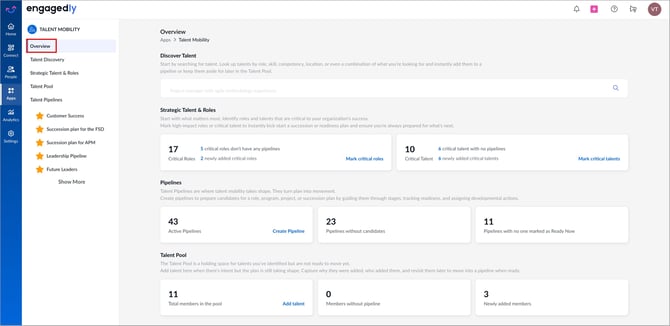
Actions you can take
Search for talent
- Go to the Discover Talent section.
- Enter a role, skill, competency, location, or a combination into the search box.
- Press Enter on your keyboard or click the Search
 icon to view matching talent.
You are redirected to the “Talent Discovery” page.
After discovering talent, you can perform additional actions. For more information, refer to What you can do after discovering the talent.
Mark critical roles
- Locate the Strategic Talent & Roles section.
- Click Mark critical roles.
- Select the roles that drive your organization's success.
- Click Mark Critical at the top right.
- (Optional) Enter the remarks to explain why the role is critical.
- Click Mark Critical to confirm.
Mark critical talents
- Locate the Strategic Talent & Roles section.
- Click Mark critical talents.
- Select the high-impact employees you want to track.
- Click Mark Talents.
- (Optional) Enter remarks to explain why the talent is critical.
- Click Mark Critical to confirm.
Create a pipeline
- Locate the Pipelines section.
- Click Create Pipeline.
- Enter the pipeline details, configure stages, and set readiness.
For more information, refer to Create a talent pipeline.
Add members to a talent pool
- Scroll to the Talent Pool section.
- Click Add talent.
- Select individual employees or all employees.
- Click Add Members to include them in the talent pool.
- (Optional) Enter remarks to explain why the employees are added.
- Click Add to confirm.
You can also import members to a pool. For more information, refer to Import members.
Review pipeline and pool insights
- Click any highlighted number or link on the cards (for example, critical roles without pipelines, Pipelines without candidates, or Newly added members).
- Review the filtered list that opens.
- Take follow-up actions such as creating a pipeline or assigning candidates.
💡Tips:
- Use the left navigation menu to jump directly to Talent Discovery, Strategic Talent & Roles, Talent Pool, or Talent Pipelines for a deeper view.
- Click Show More under the pipeline list to view all your active pipelines.